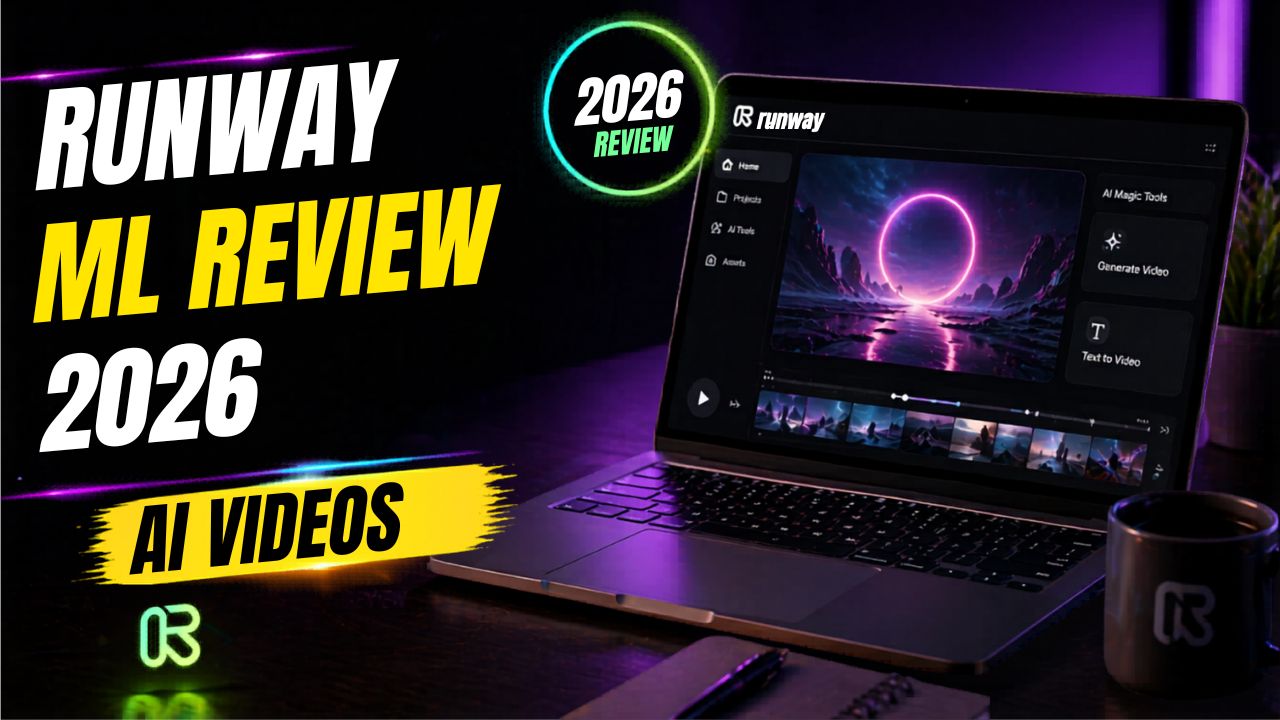
Runway ML Review 2026: 10 Powerful AI Video Features for Creators

Runway ML Review 2026

Video is powerful, but it can also be painfully slow to create.

A simple blog post can be written, edited, and published in a few hours. A good video may need scripting, footage, editing, music, subtitles, B-roll, thumbnails, exports and revisions. That is why many bloggers and creators know they should make more videos, but still avoid the work.

This is where AI video tools are becoming useful.

In 2026, creators can generate short video clips from prompts, animate still images, clean up footage, test ad ideas, create visual concepts and repurpose written content faster than before. The tools are not perfect, but they are changing the video workflow.

Runway ML is one of the biggest names in that shift.

But the real question is not whether Runway looks impressive in demos. The real question is whether it is useful for bloggers, creators, marketers, freelancers and small business owners who need practical video assets without building a full production team.
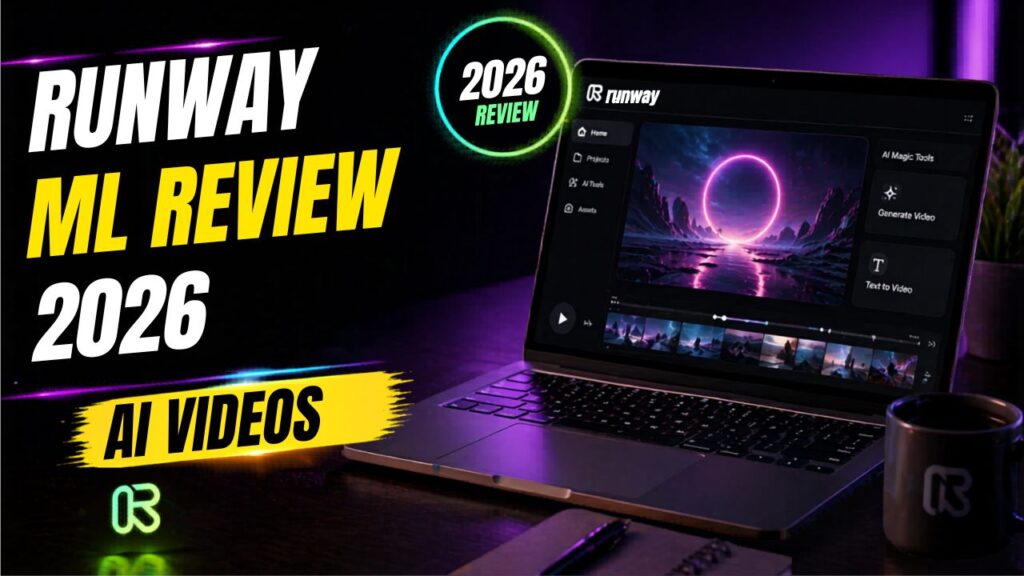
 

Runway ML Review


In this Runway ML review 2026, we will look at what Runway does, how it works, its most useful AI video features, pricing structure, pros and cons, best use cases, alternatives, and whether it is worth using this year.

Runway ML Review 2026: What Is Runway ML?

Runway ML is an AI-powered creative platform for generating, editing, and transforming video, image, and audio content.

It is not just a simple video maker. Tools like Pictory and InVideo AI are often easier for turning a script or blog post into a template-based video. Runway is different. It is closer to an AI creative studio where you can generate video clips, animate images, edit existing footage, experiment with visual styles, and test cinematic ideas.

In simple words, Runway helps you do things like:

  • Create short AI video clips from prompts
  • Animate images into moving video scenes
  • Edit existing footage with AI tools
  • Remove or change visual elements
  • Test creative ad concepts
  • Create B-roll ideas for YouTube or social media
  • Build visual assets for campaigns, tutorials, and content projects

That makes Runway powerful, but it also means it is not the simplest tool for every beginner. If you only want quick blog-to-video content, you may prefer a more guided tool. If you want creative control and AI-generated visuals, Runway becomes much more interesting.

Why Runway ML Matters in 2026

Runway matters because video creation is becoming more AI-first.

Creators no longer need to begin every project with a blank editing timeline or a long stock footage search. AI tools can now help create the first visual version of an idea much faster.

For bloggers and affiliate marketers, this is important because one article is rarely enough anymore. The same idea may need to become a blog post, YouTube video, short-form clip, Pinterest pin, LinkedIn post, newsletter, and ad creative.

Runway helps with the visual layer of that system.

A blogger can use Runway to create short visual clips for a video intro. A YouTuber can generate B-roll ideas. A freelancer can offer AI-assisted video editing. A marketer can test ad concepts before paying for full production. A small business owner can create social visuals without hiring a full video team.

That is why this Runway ML review 2026 focuses on workflow value, not just flashy AI demos.

If your main goal is comparing beginner-friendly blog-to-video tools, you may also like this Pictory AI review. If you are interested in avatar-style business videos, this Synthesia AI review is a useful next read.

How Runway ML Works

Runway works through a web-based creative workspace. You do not need to install heavy desktop editing software to start testing its AI tools.

The basic workflow looks like this:

  1. Create or log in to your Runway account.
  2. Choose a creative tool or video model.
  3. Upload an image, upload a video, or write a prompt.
  4. Generate or edit the output.
  5. Review the result.
  6. Refine the prompt, settings, or input.
  7. Export the final asset when it is ready.

Some Runway workflows start with text. Some start with an image. Some start with existing footage. This flexibility is the reason many advanced creators like Runway.

The learning curve comes from quality control.

AI video generation is still experimental. You may need to test prompts, regenerate clips, change the image input, adjust the camera language, or finish the edit in another video editor. Runway can save time, but it is not one-click magic.

10 Powerful Runway ML Features for AI Video Editing

The biggest reason creators pay attention to Runway is its feature set. Here are the most important features for this Runway ML review 2026.

1. Text-to-Video Generation

Text-to-video lets you describe a visual scene and generate a short video clip from that prompt.

For example, you could describe a futuristic office, a product concept, a cinematic city shot, or an abstract background for a tech video. Runway then tries to create a moving clip based on your instruction.

This is useful when you need custom visuals but do not want to spend hours searching stock footage.

The limitation is that AI video can still produce odd motion, strange details, or results that only partially match your prompt. Text-to-video works best as a creative starting point. For polished work, you may still need human review and extra editing.

2. Image-to-Video Generation

Image-to-video is one of the most practical Runway features for bloggers and creators.

You can upload an image and use Runway to add motion. This could be a blog featured image, product mockup, AI-generated artwork, thumbnail concept, or campaign visual.

For example, if you create a static image in Canva or another design tool, you can animate it with Runway and turn it into a short clip for YouTube Shorts, Instagram Reels, Pinterest, or a video intro.

This is easier than starting with a blank video timeline.

3. Gen-4 Video Models

Runway’s Gen-4 video tools are designed for more controllable and flexible video generation. Runway’s official help documentation explains that Gen-4 creates short videos from an input image and text prompt, and that Gen-4 Turbo is built for faster iteration at lower credit usage.

For normal users, the important point is simple: the model you choose affects quality, speed, and credit cost.

If you are experimenting, a faster model can help you test ideas without wasting too many credits. If you are working toward a more polished clip, a higher-quality model may be worth using once the concept is clearer.

4. Aleph for Editing Existing Footage

Runway is not only about generating new video from scratch. Its paid plan pages also list Aleph as a video editing feature.

This matters because many creators already have footage. They do not always need a fully AI-generated scene. They need to change, clean, or transform a video they already recorded.

AI-assisted footage editing is one of the most interesting parts of Runway because it points toward a future where creators can edit video with natural language instructions, visual references, and generative tools instead of doing every change manually.

5. Background and Object Editing

Runway is useful for visual changes that would usually take time in traditional editing software.

For example, a creator may want to remove a distracting object, test a different visual mood, or change an element inside a scene. AI editing tools can make those experiments faster.

The quality is not always perfect. Some edits look clean. Others need several attempts or final cleanup in another editor. But for concept testing and social content, this can still save serious time.

6. Creative Video Effects

Runway is strong when you want experimental visuals, stylized clips, cinematic ideas, and creative effects.

This is where it feels different from basic blog-to-video tools. Runway is less about filling a template and more about creating scenes, motion, style, and atmosphere.

That makes it useful for music videos, short films, ad concepts, social media clips, brand visuals, YouTube B-roll, and creative campaign ideas.

7. Cloud-Based Creative Workflow

Runway runs through the web, so you do not need a powerful local editing computer just to start testing AI video ideas.

This is helpful for creators who do not own a high-end editing machine.

The tradeoff is that cloud tools depend on internet access, platform availability, plan limits, export options, and credit usage. If you generate a lot of video, you need to watch your credits carefully.

8. Image and Audio Tools

Runway is not limited to video only. Current Runway pricing pages also show access to generative image and audio tools depending on the plan.

This matters because modern content creation rarely uses only one format. A campaign may need images, voice, sound, video clips, thumbnails, short clips, and longer edits.

Having multiple creative tools inside one workspace can make the workflow smoother, especially for creators who are building social campaigns or content systems.

9. Team and Workspace Features

Runway can also fit team workflows.

For agencies, marketers, and production teams, the value is not only one AI generation. The value is faster creative testing. Teams can try different visual concepts, compare outputs, and move promising ideas into final production.

Solo bloggers may not need all of this on day one, but freelancers and agencies can benefit from a more organized creative workspace.

10. Fast Concept Testing

This may be Runway’s most underrated benefit.

Traditional video concept testing can be expensive. You may need filming, stock footage, animation, or editing before you know whether an idea works.

Runway lets you test visual directions faster. A creator can try several short clips, compare moods, and choose the strongest direction before investing more time.

For marketers, this can help with ad concepts. For YouTubers, it can help with B-roll ideas. For bloggers, it can help turn written ideas into visual assets.

Runway ML Pros and Cons

No Runway ML review 2026 should ignore the tradeoffs. Runway is powerful, but it is not perfect for everyone.

Pros Cons
Strong AI video generation features Higher learning curve than simple AI video tools
Useful for creative editing and visual experiments Credits can run out quickly during testing
Cloud-based workflow Generated clips may need multiple attempts
Good fit for creators, marketers, and agencies Not the easiest choice for complete beginners
Supports video, image, and audio workflows Final polish may still need another video editor


The biggest benefit is creative power. The biggest drawback is that Runway requires testing, patience, and some visual judgment.

Runway ML Pricing in 2026

Runway uses a plan and credit system. Credits are spent when you generate or process creative outputs, and the amount depends on the model and workflow.

According to Runway’s official pricing and help pages, the Free plan is designed for people who want to explore the platform before upgrading. It includes a limited one-time credit allocation. Runway also notes that free-plan videos include a watermark, and users need a paid plan for watermark removal and broader generation access.

Paid plans add monthly credits, access to more models and tools, higher export options, more storage, and the ability to buy more credits depending on the plan. Runway’s pricing page lists Standard, Pro, Unlimited, and Enterprise-style options, but details can change, so always check the live pricing page before buying.

For beginners, the key question is not only the monthly price. It is how many attempts you will need.

AI video often takes testing. One final clip may require several generations. If you are experimenting with prompts, camera motion, image inputs, or different models, credits can disappear faster than expected.

Before paying, ask yourself:

  • Do I need watermark-free exports?
  • Am I creating casual experiments or client-ready work?
  • How many clips do I need each month?
  • Will I use Runway alone or with another editor?
  • Do I understand how credits are counted?

For this Runway ML review 2026, the safest advice is to test the free plan first, learn the workflow, then upgrade only when you know Runway fits your creative process.

That is also why this Runway ML review 2026 avoids treating the cheapest plan as the automatic best choice. The right plan depends on how many clips you create, how often you regenerate, and whether you need watermark-free exports.

Try Runway for AI Video Editing

If you want to test AI video generation, image-to-video, and creative video workflows, start with Runway directly and see how it fits your content style.

Try Runway ML

Is Runway ML Beginner-Friendly?

Runway is beginner-accessible, but it is not the easiest AI video tool for complete beginners.

A beginner can create an account, choose a model, upload an image, write a prompt, and generate a short clip. That part is simple enough.

The challenge starts when you want consistent, professional-looking results.

You may need to learn prompt writing, camera language, image selection, model differences, credit usage, and how to combine AI clips with regular editing.

If you are a blogger who simply wants to turn articles into simple videos, Pictory or InVideo AI may feel easier. If you want cinematic AI visuals, creative B-roll, or experimental video scenes, Runway is more useful.

The honest answer is this: Runway is not the easiest AI video tool, but it is one of the most powerful creative AI video tools.

Runway ML vs Traditional Video Editing Tools

Can Runway replace Premiere Pro, Final Cut Pro, or DaVinci Resolve?

Sometimes, but not completely.

Runway can replace traditional tools for certain AI-specific tasks, such as generating visual clips, animating images, testing concepts, or making creative edits. But traditional editors are still better for precise timeline control, long-form editing, audio mixing, color grading, subtitles, multi-camera projects, and final delivery.

Task Runway ML Traditional Editor
Generating AI video clips Strong Not built for this by default
Fast concept testing Excellent Slower
Long-form YouTube editing Limited Better choice
Creative AI edits Strong Depends on plugins and manual skill
Final professional polish May need another editor Better choice


For many creators, the best workflow is not Runway or traditional editing. It is Runway plus traditional editing.

Use Runway to create or transform assets. Use a regular editor to assemble and polish the final video.

Runway ML vs Other AI Video Tools

Runway is not the only AI video tool available. The best choice depends on what you are trying to create.

Runway ML vs Pictory

Pictory is easier for turning blog posts and scripts into simple videos. It is a better starting point for bloggers who want quick content repurposing.

Runway is better for creative AI video generation, visual effects, image-to-video, and experimental editing.

Runway ML vs Synthesia

Synthesia is focused on AI avatar videos. It works well for training videos, tutorials, explainers, and business communication.

Runway is better for visual creativity, generated scenes, cinematic clips, and editing existing footage.

Runway ML vs InVideo AI

InVideo AI is more beginner-friendly for creating social videos, marketing videos, and script-to-video workflows.

Runway is more advanced and better for creators who want deeper creative control.

Runway ML vs Canva AI

Canva AI is better for static visuals, blog graphics, thumbnails, and social posts.

Runway is stronger for video generation and motion-based creative work. Many bloggers may use both: Canva for images and Runway for video experiments.

Best Use Cases for Runway ML

Runway is strongest when you use it for the right type of project.

Content Creators

Creators can use Runway for short clips, intros, background visuals, B-roll ideas, and social media experiments.

YouTubers

YouTubers can use Runway for visual storytelling, AI B-roll, cinematic scenes, and concept clips that support their main footage.

Bloggers

Bloggers can use Runway to repurpose written ideas into short videos, create AI visuals for YouTube, or add motion to blog graphics.

Affiliate Marketers

Affiliate marketers can create product explainer visuals, ad concepts, comparison clips, and short-form promotional content. The key is to keep claims honest and avoid misleading product visuals.

Freelancers

Freelancers can use Runway to offer AI-assisted video editing, concept visuals, social media clips, and creative content packages.

Agencies

Agencies can use Runway to test creative directions before committing to full production. This can be useful for ads, campaigns, and client mockups.

How Bloggers Can Use Runway ML

Runway may not be the first tool every blogger needs, but it becomes useful once your content system is working.

A blogger can use Runway to:

  • Create short AI clips from blog ideas
  • Animate featured images for social posts
  • Generate YouTube B-roll for AI tool reviews
  • Create visual concepts for product comparison videos
  • Test ad visuals for affiliate campaigns
  • Create motion assets for Pinterest, Instagram, or Shorts

This is especially useful if your blog is about AI tools, video marketing, online business, creative software, or content creation.

If you are building an AI tools blog, your website is still the long-term asset. Social videos can bring attention, but your blog gives you SEO traffic, affiliate placements, email capture, and content ownership.

Build Your AI Video Tools Blog

If you want to review AI video tools, publish tutorials, and build affiliate content around creative software, start with a reliable WordPress blog.

Start your AI tools blog with Hostinger

How to Make Money With Runway ML

Runway does not automatically make money for you. But it can support income paths if you connect it to a real business model.

Freelance AI Video Editing

You can offer AI-assisted video editing, short-form video creation, visual concept clips, and social media video packages for clients.

YouTube Content

You can use Runway to create B-roll, intros, concept visuals, and short clips that make your videos feel more polished.

Affiliate Content

You can review AI video tools, compare alternatives, publish tutorials, and create video examples that support your affiliate articles.

Agency Services

Agencies can use Runway to create ad concepts, campaign assets, mockups, and early creative directions for clients.

Social Media Content

Short-form video still matters. Runway can help create attention-grabbing visual clips that stand out more than plain text posts.

Need AI Video Editing Help?

If you do not want to learn Runway from scratch, you can hire freelancers for AI video editing, prompts, short-form clips, and creative workflow setup.

Find AI video editors on Fiverr

Who Should Use Runway ML?

Runway is a good fit for people who want more than simple video templates.

It is best for:

  • Content creators who want AI-generated visuals
  • YouTubers who need creative B-roll
  • Marketers testing ad concepts
  • Filmmakers exploring scene ideas
  • Agencies creating visual mockups
  • Advanced bloggers creating video content
  • Freelancers offering AI video services

If you enjoy experimenting and improving creative outputs, Runway can be exciting.

Who Should Skip Runway ML?

Runway is not the best fit for every user.

You may want to skip it if:

  • You only need simple slideshow videos
  • You want a tool that does everything with templates
  • You do not want to learn prompting or visual direction
  • You have no patience for testing multiple generations
  • You need precise long-form timeline editing
  • You are on a tight budget and need unlimited output

For complete beginners, Runway may feel powerful but slightly overwhelming. If your main goal is simple content repurposing, start with easier tools first and come back to Runway when you want more creative control.

Is Runway ML Legit?

Yes, Runway ML is a legitimate AI video and creative platform.

Runway has official product pages, pricing pages, help documentation, model guides, and developer documentation. Its official pages list video models, image tools, audio tools, plans, credits, and free-plan limitations.

But being legit does not mean every output will be perfect.

AI video generation is still unpredictable. You may need multiple attempts, prompt changes, better source images, and extra editing before you get a clip you would actually publish.

The honest view is this: Runway is legit, but it works best for creators who understand that AI video creation is a creative process, not a guaranteed one-click result.

Recommended Resource Before the Verdict

Want a Faster AI Video Workflow?

If Runway feels advanced, start with a simple workflow checklist for prompts, image-to-video, short clips, content repurposing and credit-safe testing before spending credits randomly.

Access the AI Video Creator Starter Kit

Recommended Book for AI Creators

If you want to understand how AI is changing creative work, a useful book to explore is Co-Intelligence: Living and Working with AI by Ethan Mollick.

It is not a Runway tutorial, but it can help creators think about AI as a working partner instead of treating it like a shortcut. That mindset matters with tools like Runway because the best results usually come from human direction, review and refinement.

Recommended Reading

If you are building AI-assisted creative workflows, this book can help you think more clearly about working with AI tools.

Check Co-Intelligence on Amazon

Final Words: Is Runway ML Worth It in 2026?

After researching this Runway ML review 2026, my honest verdict is that Runway is worth exploring if you want advanced AI video creation and editing features.

It is not the simplest AI video tool. It is not the cheapest tool for heavy experimentation. It is not a full replacement for traditional editing in every workflow.

But it is one of the strongest creative AI video platforms for creators who want to generate visuals, animate images, edit footage, test ideas, and create more experimental content.

Runway is best for creators, marketers, filmmakers, agencies, freelancers, and advanced bloggers who want creative control.

It is less ideal for complete beginners who only want fast template-based videos. If you want blog-to-video automation, start with Pictory or InVideo AI. If you want avatar videos, consider Synthesia. If you want creative AI video generation and visual experimentation, Runway is a strong choice.

Start Testing Runway ML

If you want to explore AI video generation and creative editing, start with small experiments, track your credit usage, and only upgrade when the workflow helps your content.

Try Runway ML for AI video editing

Frequently Asked Questions

Is Runway ML free?

Runway has a Free plan with limited access and a one-time credit allocation. According to Runway’s help center, the Free plan is designed for users who want to explore the platform before upgrading. Free-plan videos include a Runway watermark.

Is Runway ML beginner-friendly?

Runway is beginner-accessible, but it has a learning curve. It is easier to start than traditional editing software, but harder than simple template-based AI video tools.

Can Runway ML create videos from text?

Yes. Runway supports text-to-video workflows through its generative video models. Results depend on the model, prompt quality, input quality, settings, and the number of attempts.

Can Runway ML animate images?

Yes. Runway supports image-to-video workflows where you provide an image and prompt to generate a moving video clip.

Can Runway ML replace traditional video editing tools?

Runway can replace traditional tools for some AI video generation and creative editing tasks. However, traditional editors are still better for precise long-form editing, audio control, color grading, and final professional polish.

Is Runway ML better than Pictory?

Runway is better for advanced AI video generation and creative visual editing. Pictory is usually easier for turning blog posts and scripts into simple videos.

Is Runway ML good for YouTube creators?

Yes, Runway can be useful for YouTube creators who need B-roll, visual effects, cinematic clips, intros, or creative video concepts. It may still need another editor for final YouTube production.

Can I make money with Runway ML?

Yes, Runway can support freelance video services, YouTube content, agency creative work, affiliate content, and social media assets. Income depends on your skill, niche, clients, traffic, offer, and consistency.

Does Runway ML require editing skills?

You do not need advanced editing skills to start, but basic visual judgment helps. The better you understand prompts, composition, pacing, and editing goals, the better your results will usually be.

Conclusion

This Runway ML review 2026 shows that AI video editing is moving quickly.

Runway is not the simplest tool, but it is one of the most powerful AI video platforms for creators who want more creative control. It can help generate videos, animate images, edit footage, test ideas, and create visual assets faster than many traditional workflows.

Still, it is not perfect. Beginners should expect a learning curve, credit limits, and some trial and error. AI-generated video can look impressive, but it often needs human review and final polish.

If you want easy blog-to-video automation, start with a simpler tool. If you want advanced AI visuals and creative editing power, Runway is worth exploring.

For creators, bloggers, marketers, and freelancers, the best approach is to use Runway as part of a bigger content system. Use it for visual creation, use your website for long-term SEO, and use freelancers when you need expert help.

How We Checked This Review

Before updating this review, we checked Runway’s official website, pricing page, free-plan help documentation, Gen-4 video guide, Gen-4 prompting guide, and subscription guidance. This helps keep the article practical and safer for readers comparing AI video tools.

Affiliate Disclosure

As an Amazon Associate, I earn from qualifying purchases. Some links in this article are affiliate links, which means I may earn a commission at no extra cost to you if you buy through them. I only recommend tools, books, and services that may help beginners, creators, and online business owners create better content or grow their work more effectively.
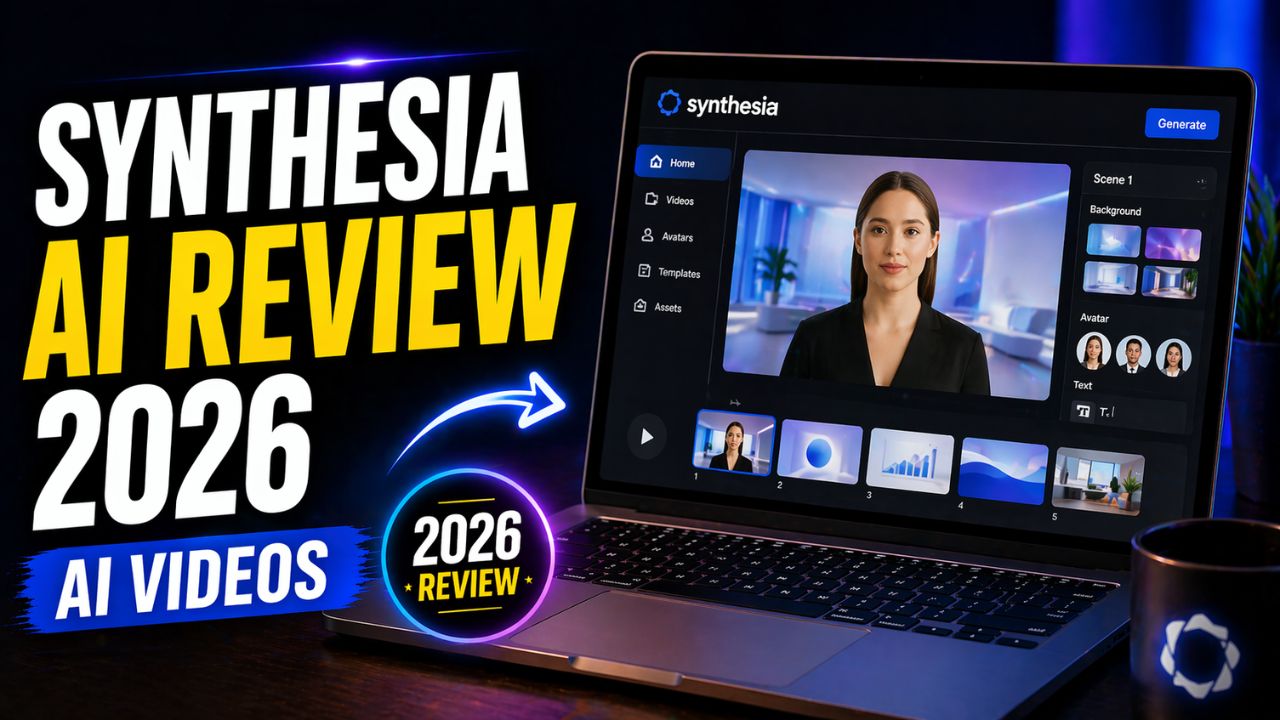
Synthesia AI Review 2026: 8 Powerful Avatar Video Features

Synthesia AI Review 2026

Some people enjoy being on camera. Most beginners do not.

That is one of the hidden reasons video content feels so hard. It is not only the editing. It is the camera setup, lighting, microphone, background, confidence, retakes, and the awkward feeling of recording yourself when you are still learning.

For bloggers, creators, freelancers, and small business owners, this creates a real problem. Video can help with YouTube, training, product demos, courses, social media, and sales pages. But recording every video manually takes time and energy.

Synthesia tries to solve that specific problem.

Instead of recording yourself, you write a script, choose an AI avatar, select a voice or language, and generate a presenter-style video. No camera. No microphone. No studio.


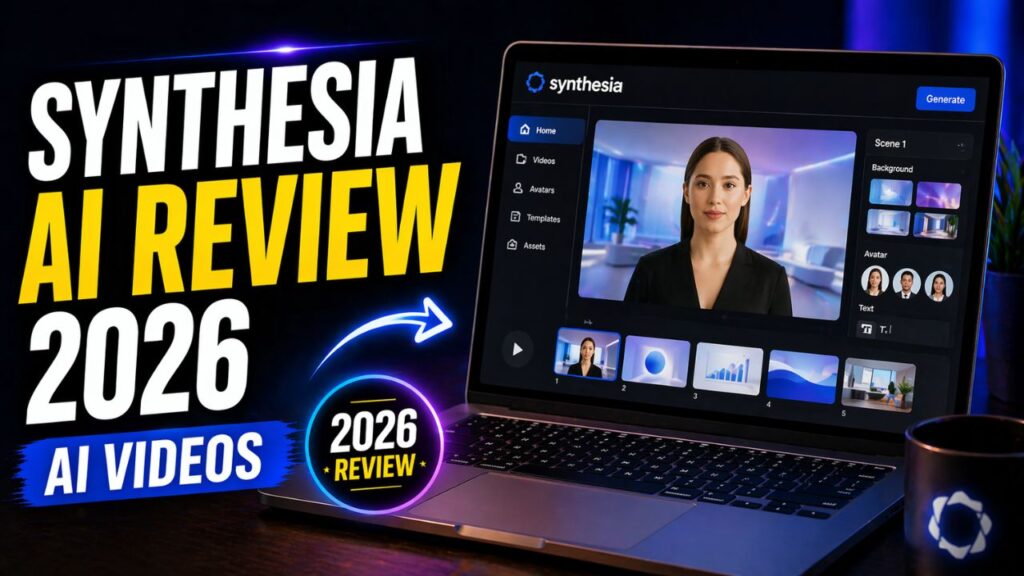
Synthesia AI Review


That sounds powerful, but it also raises a fair question: is Synthesia actually useful in 2026, or does it still feel too robotic for serious content?

In this Synthesia AI review 2026, we will look at what Synthesia does, how it works, its avatar video features, pricing, pros and cons, best use cases, alternatives, money-making ideas, and whether it is worth using for bloggers, creators, and businesses.

Synthesia AI Review 2026: What Is Synthesia?

Synthesia is an AI video creation platform that lets users create presenter-style videos from text scripts using AI avatars.

In simple words, you type what you want the presenter to say, choose an AI avatar, customize the video, and generate a talking video without recording yourself.

This makes Synthesia different from many AI video tools.

Pictory is better known for turning blog posts and scripts into stock-footage-style videos. Runway ML is stronger for creative AI video generation and visual editing. Synthesia focuses mainly on avatar presenter videos, training content, business explainers, course lessons, onboarding videos, and multilingual video production.

A basic Synthesia workflow looks like this:

Write script -> choose avatar -> choose voice or language -> customize scene -> generate video -> review and share.

That workflow is useful for people who want professional-looking presenter videos but do not want to appear on camera.

Why Synthesia AI Matters in 2026

Synthesia matters because video demand keeps growing, but the recording process still slows people down.

Businesses need training videos. Course creators need lessons. Bloggers need YouTube explainers. Affiliate marketers need product demos. Freelancers need service deliverables. Teams need onboarding and internal communication.

Recording each of those videos manually can become expensive and repetitive.

Synthesia is useful because it makes presenter-style video creation repeatable. If you need one personal story, filming yourself may be better. If you need 30 training videos, 20 product explainers, or the same message in multiple languages, an AI avatar workflow can save a lot of time.

That is why this Synthesia AI review 2026 does not judge Synthesia like a cinematic video editor. It is better judged as an AI avatar video system.

If you want blog-to-video repurposing, read this Pictory AI review. If you want creative AI video generation, this Runway ML review is the better comparison.

How Synthesia AI Works

Synthesia is easier than traditional video recording for many structured video projects.

The basic process looks like this:

  1. Write or paste your script.
  2. Choose an AI avatar.
  3. Select a voice and language.
  4. Choose a template or layout.
  5. Add visuals, text, screen elements, or branding.
  6. Generate the video.
  7. Review, edit, download, or share the result.

You do not need a camera, microphone, lighting setup, or advanced video editing software to start.

However, Synthesia still needs a strong script. If your script is boring, the video will feel boring. If your message is unclear, the avatar cannot fix it. The tool makes production easier, but the content still needs human planning and editing.

8 Powerful Synthesia AI Features

The most important part of this Synthesia AI review 2026 is understanding what the tool actually helps you do.

1. AI Avatars

AI avatars are the core feature of Synthesia.

These are virtual presenters that speak your script on screen. Synthesia’s pricing page currently lists access to large avatar libraries on paid plans, with more avatars available on higher plans.

This is useful because you can create presenter-style videos without hiring an actor or recording yourself.

For training videos, tutorials, explainers, internal updates, and faceless YouTube content, this can save time.

The limitation is that AI avatars may still feel less personal than real humans in emotional, story-driven, or high-trust videos. For simple educational and business content, they can work well. For personal brand storytelling, a real person may still feel more authentic.

2. Text-to-Video Creation

Synthesia’s main workflow is text-to-video.

You write a script, and Synthesia turns it into a video with an avatar speaking the content.

This is useful for beginners because writing is often easier than recording. If you can explain something clearly in writing, you can turn it into a video.

For bloggers, this is especially practical. A blog section can become a short explainer video, training clip, product summary, or course lesson.

3. Voice and Language Options

Synthesia supports voice and language workflows for creating videos for different audiences.

Its pricing page currently mentions 1-click translations into 80+ languages on Enterprise. Synthesia’s personal avatar documentation also explains voice and language support for personal avatars depending on plan and availability.

This makes Synthesia useful for businesses, educators, and teams that need multilingual content.

For example, a company can create one training video and adapt it for different regions. A creator can prepare content for global audiences without recording each version manually.

4. Templates

Synthesia includes templates that help users create polished layouts faster.

Templates are useful because beginners often struggle with video design. Instead of starting from a blank scene, you can choose a structure and customize it.

This works well for training videos, product explainers, presentations, onboarding videos, and business updates.

The limitation is that template-based videos can look similar if you do not customize them. Change colors, titles, visuals, and scene structure so your video does not feel copied.

5. Personal Avatars

Synthesia also offers personal avatar options on paid plans.

According to Synthesia’s documentation, personal avatars can be created from a photo or video workflow depending on the feature, and the process includes consent steps. Synthesia states that it obtains consent before generating an AI avatar and gives avatar owners control over usage, including deletion options.

This is important because avatar tools involve identity and likeness.

For businesses, personal avatars can be powerful. A founder, trainer, or company spokesperson can create repeated videos without recording every time.

For beginners, this may not be necessary at first. Start with stock avatars before thinking about personal avatar workflows.

6. AI Dubbing and Translation

Synthesia includes AI dubbing and translation-related features depending on the plan.

This is useful when you already have video content and want to adapt it for another audience.

For creators with global ambitions, dubbing and translation can become valuable. For example, one English training video could become versions for other language audiences.

For AI Sage Labs readers in the US, UK, Canada, India, and other English-speaking or multilingual markets, this global angle may become more useful as your content library grows.

7. Brand Kits and Team Features

Synthesia is strongly positioned for business use, so it includes team and branding features on higher plans.

Synthesia’s documentation explains that brand kits help apply company logos, colors, fonts, and avatars so videos stay consistent. Its pricing page also highlights team collaboration and enterprise security features for larger organizations.

This is one reason Synthesia is popular for companies, training teams, and agencies. It is not only a creator tool. It is also built for repeatable business video production.

8. Interactive Videos and API Access

Synthesia’s pricing page currently lists API access and interactive videos on the Creator plan and above.

This matters for agencies, SaaS companies, and advanced teams that want video creation to connect with a larger system.

Most beginners do not need API access on day one. But for advanced users, it can support scalable video workflows, product education, client delivery, and internal training systems.

Synthesia AI Pros and Cons

No Synthesia AI review 2026 is complete without the tradeoffs. Synthesia is useful, but it is not the perfect tool for every video type.

Pros Cons
No camera, microphone, or recording setup needed Avatar videos may not feel as personal as real human videos
Beginner-friendly text-to-video workflow Paid plans are needed for serious use
Strong for training, explainers, and business videos Not ideal for cinematic or highly creative video editing
Useful language and dubbing options Results depend heavily on script quality
Templates help speed up production Videos can look generic if templates are not customized

The biggest benefit is speed and simplicity. The biggest limitation is that AI avatar videos still need strong scripting and careful use to feel trustworthy.

Synthesia AI Pricing in 2026

Synthesia pricing can change, so always check the official pricing page before buying.

At the time of writing, Synthesia’s official pricing page lists a free Basic plan and paid plans such as Starter, Creator, and Enterprise. The page also explains that credits are a shared currency across AI usage-based features.

The current plan structure includes:

  • Basic: Free plan for getting started, with limited monthly credits and usage.
  • Starter: Paid plan for users who want downloads, more avatar access, AI Video Assistant, AI Dubbing, and Synthesia logo removal.
  • Creator: Higher paid plan with more credits, personal avatars, API access, multiple avatars per scene, interactive videos, and stronger support.
  • Enterprise: Custom plan for teams that need larger video production, translations, collaboration, brand kits, security, onboarding, and enterprise support.

For beginners, the best approach is simple:

  1. Try the free Basic plan if it is available in your region.
  2. Create one short test video.
  3. Check whether the avatar style fits your audience.
  4. Upgrade only if you need downloads, watermark removal, more avatars, or more video output.
  5. Consider Creator or Enterprise only when video becomes part of a serious workflow.

For this Synthesia AI review 2026, I would not recommend paying for a higher plan just because the features look attractive. Upgrade when you know exactly how many videos you want to create and what business result those videos support.

Try Synthesia for Avatar Videos

If you want presenter-style videos without recording yourself, test Synthesia with one short script before building a full video workflow.

Try Synthesia AI

Is Synthesia AI Beginner-Friendly?

Yes, Synthesia is beginner-friendly compared with traditional video recording and editing.

You do not need to understand cameras, lighting, microphones, timeline editing, or advanced video software. If you can write a clear script, you can create a basic Synthesia video.

That is a big advantage for bloggers and creators who feel nervous on camera.

However, beginner-friendly does not mean effortless. You still need to write a good video script, choose the right avatar, keep the video visually clean, and avoid making the content feel robotic.

The tool is easy to operate. The content still needs human judgment.

Synthesia vs Other AI Video Tools

A practical Synthesia AI review 2026 should compare Synthesia with the other video tools bloggers already see online.

Synthesia vs Pictory

Synthesia is better for AI avatar videos, training videos, and presenter-style explainers.

Pictory is better for turning blog posts and scripts into stock-footage-style videos.

Synthesia vs InVideo AI

InVideo AI is better for beginner-friendly video creation, social videos, and script-to-video workflows with templates.

Synthesia is better when you specifically want an avatar presenter speaking your script.

For a broader beginner video workflow, read this InVideo AI review.

Synthesia vs Runway ML

Runway ML is better for generative video, creative visuals, image-to-video, and advanced AI video editing.

Synthesia is better for structured talking-avatar videos, training content, and business presentations.

Synthesia vs HeyGen

HeyGen is another strong AI avatar video tool. Some creators prefer it for certain avatar styles, social video workflows, or creator-focused avatar content.

Synthesia is especially strong for business, training, enterprise, and polished presentation-style videos.

Best Use Cases for Synthesia AI

Synthesia works best when the video is script-driven and presenter-style.

Business Training Videos

Synthesia is a strong fit for employee training, onboarding, compliance videos, internal explainers, and process documentation.

Businesses can create repeatable video lessons without booking presenters and production teams every time.

YouTube and Faceless Content

Creators can use Synthesia for faceless YouTube videos, explainer channels, educational clips, and niche tutorials.

However, YouTube content still needs strong scripting, pacing, visual variety, and originality. An avatar reading a weak script will not automatically perform well.

Course Creation

Online course creators can use Synthesia to produce lesson videos without filming themselves.

This is especially useful for tutorials, software explainers, language versions, and training modules.

Marketing and Product Explainers

Marketers can use Synthesia to create product explainers, landing page videos, onboarding videos, and short sales presentations.

Avatar videos can work well when the goal is to explain a concept clearly.

Multilingual Content

For teams targeting global audiences, Synthesia’s language and translation features can help scale content into multiple regions more easily.

This is one of its strongest business use cases.

How Bloggers Can Use Synthesia AI

Bloggers can use Synthesia to turn written content into simple presenter-style videos.

For example, a blogger can turn a tutorial, product review, list post, or explainer article into a short video script. Then Synthesia can turn that script into a video with an avatar presenter.

This can help bloggers create:

  • YouTube explainers
  • Short educational videos
  • Course lessons
  • Affiliate product demos
  • Social media clips
  • Email course videos

The best workflow is not to paste a full blog post into Synthesia. Rewrite the post into a short video script first.

A good video script should be simple, direct, and conversational. Short sentences work better than long paragraphs.

Build Your AI Video Content Hub

If you want to publish AI tool reviews, tutorials, and video explainers, your blog should be the home base where your content can rank and convert over time.

Start your AI content blog with Hostinger

How to Make Money With Synthesia AI

Synthesia does not automatically make money for you. But it can support several real online business models.

YouTube Automation

Creators can use Synthesia for faceless YouTube channels, explainer videos, and educational content.

This works best when you choose a focused niche, write original scripts, add useful visuals, and avoid low-effort mass-produced videos.

Freelance Video Services

Freelancers can offer AI avatar video services for businesses, coaches, course creators, and marketers.

Services may include script writing, video creation, training videos, onboarding videos, product explainers, and multilingual versions.

Course Creation

If you sell online courses, Synthesia can help create lesson videos without recording yourself every time.

This can speed up course production, especially for structured lessons and software tutorials.

Agency Model

Agencies can package Synthesia videos as part of content marketing, training, onboarding, or product education services.

This works best when the agency adds strategy, scripting, design, and editing instead of only generating basic avatar videos.

Affiliate Marketing

Affiliate marketers can use Synthesia to create product explainers, comparison videos, and video summaries for blog posts.

For example, a review article can become a short video that explains who the product is best for and why.

Need AI Avatar Video Help?

If you need scripts, avatar video setup, editing, or course-style videos, you can hire AI video creators and editors instead of learning everything yourself.

Find AI video experts on Fiverr

Who Should Use Synthesia AI?

Synthesia is best for people who need presenter-style videos without recording themselves.

It is a good fit for:

  • Businesses creating training videos
  • Course creators making lessons
  • Bloggers repurposing content into video
  • Affiliate marketers creating product explainers
  • Freelancers offering video services
  • Teams creating multilingual content
  • Introverts who do not want to appear on camera

If your content is educational, scripted, and presentation-based, Synthesia can be a strong tool.

Who Should Skip Synthesia AI?

Synthesia is not the best fit for every video creator.

You may want to skip it if:

  • You need cinematic AI video generation
  • You want advanced visual effects
  • You need highly emotional storytelling
  • You only create casual social videos
  • You want the cheapest possible video tool
  • You dislike avatar-style content

For cinematic AI visuals, Runway may be a better fit. For blog-to-video automation, Pictory or InVideo AI may feel easier. For avatar presentations, Synthesia is one of the strongest options.

Is Synthesia AI Legit?

Yes, Synthesia is a legitimate AI video platform.

Its official website and documentation include details about avatars, personal avatars, voices, plans, credits, brand kits, and business features. It is widely used for business video creation, training, presentations, and avatar-based content production.

However, being legit does not mean it is perfect for every creator.

AI avatar videos still have limits. They may not replace real human presence for personal storytelling, emotional content, or high-trust creator videos. The quality also depends heavily on your script and design choices.

The honest view is simple: Synthesia is legit and useful, but it works best for structured presenter-style videos, not every type of video content.

Recommended Resource Before the Verdict

Want an Avatar Video Script Kit?

If you want to use Synthesia without sounding robotic, start with a simple script kit for explainers, training videos, affiliate product demos and short YouTube lessons.

Access the AI Avatar Video Script Kit

Recommended Book for AI Video Creators

If you want to understand how AI tools are changing creative work, a useful book to explore is Co-Intelligence: Living and Working with AI by Ethan Mollick.

It is a good fit for creators who want to use AI as a practical work partner, not just a shortcut for generating more content.

This mindset matters with tools like Synthesia because the best results come from combining AI speed with human scripting, editing, and judgment.

Recommended Reading

If you are using AI for content creation, this book can help you think more clearly about where AI helps and where human review still matters.

Check Co-Intelligence on Amazon

Synthesia AI Review 2026 Verdict: Is It Worth It?

After researching this Synthesia AI review 2026, my honest verdict is that Synthesia is worth it for the right user.

It is not the cheapest AI video tool. It is not the best choice for cinematic video generation. It is not perfect if you want highly emotional or personal content.

But for avatar videos, training content, explainers, course lessons, business presentations, and multilingual video workflows, Synthesia is a strong option.

It is especially useful for people who do not want to appear on camera but still want professional presenter-style videos.

For bloggers and affiliate marketers, Synthesia can help turn written content into video assets. For businesses, it can scale training and internal communication. For freelancers, it can become a service opportunity.

If your goal is simple blog-to-video content, compare it with Pictory or InVideo AI. If your goal is avatar-led presenter videos, Synthesia is worth exploring.

Start Creating AI Avatar Videos

If you want professional presenter-style videos without camera stress, test Synthesia with one short script and review how natural the output feels for your audience.

Try Synthesia AI for avatar videos

Frequently Asked Questions

Is Synthesia AI free?

Synthesia currently lists a free Basic plan on its pricing page, but serious use usually requires a paid plan. Check the official pricing page before starting because plan details can change.

Do I need a camera to use Synthesia?

No. Synthesia lets you create avatar videos from text, so you do not need a camera, microphone, or traditional recording setup for basic videos.

Can I create YouTube videos with Synthesia?

Yes, you can create YouTube-style explainer videos, tutorials, faceless content, and educational videos with Synthesia. The best results still require strong scripts and original ideas.

Is Synthesia beginner-friendly?

Yes. Synthesia is beginner-friendly compared with recording and editing videos manually. However, you still need to learn basic script writing and video structure.

Can I make money using Synthesia AI?

Yes, Synthesia can support YouTube content, course creation, freelance video services, agency work, and affiliate marketing. Income depends on your niche, offer, traffic, skill, and consistency.

Is Synthesia better than Pictory?

It depends on your use case. Synthesia is better for AI avatar presenter videos. Pictory is usually better for turning blog posts and scripts into simple stock-footage videos.

Is Synthesia better than Runway ML?

Synthesia is better for avatar videos and presenter-style content. Runway ML is better for generative video, creative visuals, and advanced AI video editing.

Can Synthesia replace real video recording?

Synthesia can replace real video recording for training, explainers, presentations, and some faceless content. It may not replace real human video for emotional storytelling, personal branding, or high-trust creator content.

Conclusion

This Synthesia AI review 2026 shows that AI avatar video tools are becoming a serious part of content creation.

Synthesia is not perfect, and it is not the cheapest option. But for people who want to create professional presenter-style videos without recording themselves, it is one of the strongest tools available.

It is best for business training, course lessons, explainers, multilingual content, faceless YouTube videos, and scripted marketing videos.

The smartest way to use Synthesia is not to rely on avatars alone. Start with a strong script, keep the message simple, customize the visuals, review the final output, and use it as part of a larger content system.

If you are a blogger, creator, freelancer, or business owner who wants to create videos without camera stress, Synthesia is worth exploring in 2026.

How We Checked This Review

Before updating this review, we checked Synthesia’s official website, pricing page, personal avatar documentation, brand kit documentation, and current plan feature details. This helps keep the article practical and safer for readers comparing AI avatar video tools.

Affiliate Disclosure

As an Amazon Associate, I earn from qualifying purchases. Some links in this article are affiliate links, which means I may earn a commission at no extra cost to you if you buy through them. I only recommend tools, books, and services that may help beginners, creators, and online business owners create better content or grow their work more effectively.
Pictory AI Review 2026: Can It Turn Blog Posts Into Videos Fast?

Pictory ai review

Most bloggers know video can help them grow, but very few have the time to become full-time video editors.

Writing a blog post is already a serious job. Turning that same post into a YouTube video, Pinterest video, Instagram Reel, TikTok clip, or LinkedIn video can feel like a second business. You need a script, visuals, captions, music, voiceover, formatting, and editing time.

That is why tools like Pictory are interesting.

Pictory is built for people who already have content and want to repurpose it into video faster. Instead of starting with a blank timeline, you can start with a script, blog URL, video file, image, or presentation and let AI create the first video draft.

The question is not whether Pictory can create a video. It can. The better question is whether the video is useful enough for bloggers, affiliate marketers, creators, and small businesses in 2026.


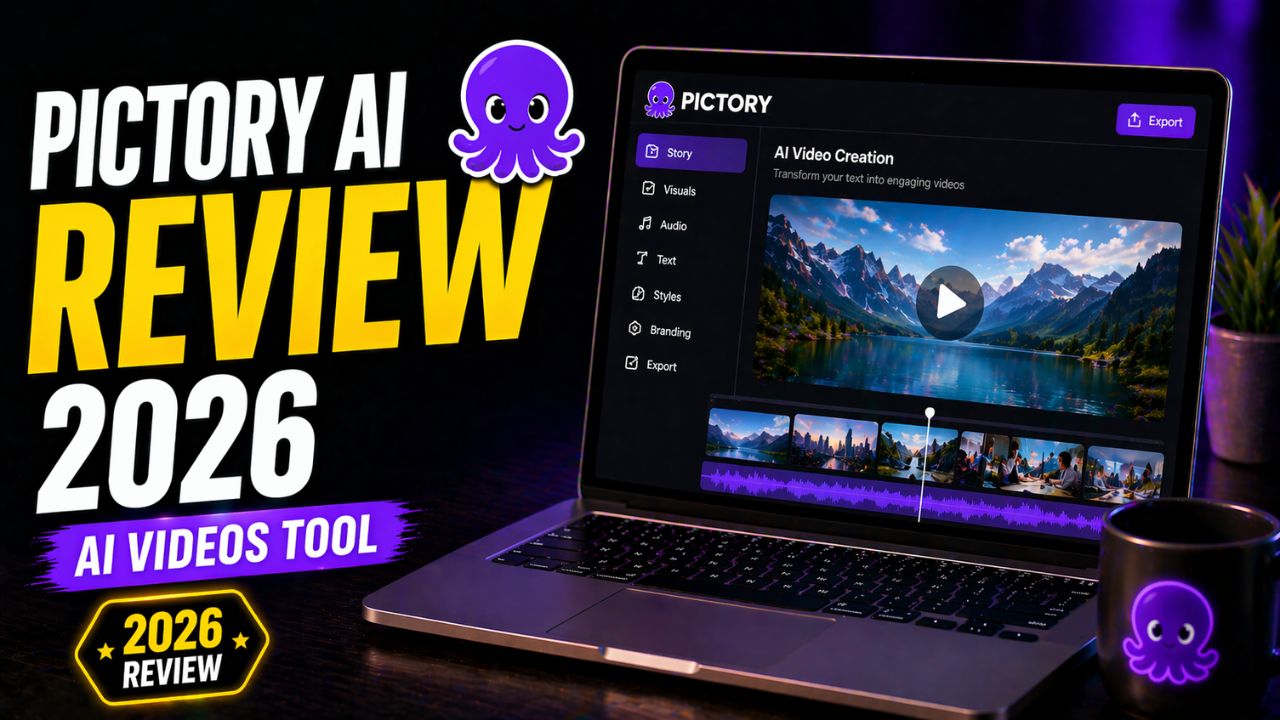
Pictory AI Review


In this Pictory AI review 2026, we will look at what Pictory does, how it works, its best features, pricing, pros and cons, alternatives, blog-to-video workflow, money-making use cases, and whether it is worth using this year.

Pictory AI Review 2026: What Is Pictory?

Pictory is a web-based AI video creation platform that helps users create and edit videos from text, blog URLs, scripts, images, videos, audio, and PowerPoint presentations.

In simple language, Pictory helps you turn written or existing content into videos.

For example, if you already published a blog post, you can use Pictory’s URL-to-video workflow to turn that article into a video script and draft video. Pictory’s help center explains that users can enter a blog or webpage URL, let the system generate a script, then refine the result before producing the video.

This makes Pictory especially useful for bloggers because most bloggers already have written content. Instead of writing a separate video idea from scratch, you can repurpose articles you already created.

Pictory is different from tools like Synthesia and Runway ML.

Synthesia is mainly known for AI avatar presenter videos. Runway ML is stronger for generative video and creative AI editing. Pictory is best known for blog-to-video, script-to-video, captions, text-based editing, and content repurposing.

That makes it one of the most practical AI video tools for bloggers who want more reach from the content they already publish.

Why Pictory AI Matters in 2026

Pictory matters because content has become multi-format.

A blog post is still valuable, especially for SEO. But in 2026, the same idea may also need to appear as a short video, YouTube explainer, Pinterest pin, newsletter section, and social media clip.

The problem is time.

Most bloggers do not have a full video team. They may be doing keyword research, writing, editing, affiliate link placement, images, internal links, email newsletters, and social media alone.

Pictory helps by creating the first video draft faster.

You can take a blog post, script, or long video and turn it into a more visual format. Then you review the scenes, change weak visuals, check captions, adjust branding, and export.

That does not mean Pictory creates perfect videos with no effort. AI may choose generic stock footage. Captions may need corrections. The pacing may need edits. The script may need to be shorter and more video-friendly.

But as a repurposing tool, Pictory solves a real problem for bloggers: it helps one article become more than one content asset.

If you want a more creative AI video platform, read this Runway ML review. If you want AI avatar presenter videos, this Synthesia AI review is the better comparison.

How Pictory AI Works

Pictory works by taking your input and turning it into scenes for a video.

Pictory’s user manual explains that users can start from different inputs such as text, URL, video, and PowerPoint presentation. Current Pictory pages also promote workflows such as text-to-video, URL-to-video, audio-to-video, AI avatars, AI video editor, PPT-to-video, and image-to-video.

The basic workflow looks like this:

  1. Choose the type of video you want to create.
  2. Add your script, blog URL, video, images, audio, or presentation.
  3. Let Pictory create a video draft.
  4. Review the storyboard and scenes.
  5. Change visuals, captions, music, voiceover, or branding.
  6. Preview the video.
  7. Export and publish.

The important thing to understand is that Pictory gives you a draft. It does not remove the need for judgment.

That is actually fine. A good AI workflow should save time on the first version while still letting you improve the final output before publishing.

9 Reasons Pictory Is Useful for Bloggers

The main value of this Pictory AI review 2026 is understanding where Pictory actually helps bloggers and creators.

1. Blog-to-Video Conversion

Pictory’s strongest use case is turning blog posts and web pages into videos.

If you already have a published article, you can use a URL-to-video or article-to-video workflow to create a video draft from that content.

This is useful because it lets you reuse work you already did. A review article can become a short video summary. A how-to guide can become a step-by-step explainer. A list post can become a YouTube or social media video.

The limitation is that blog posts are not always written like video scripts. For best results, shorten the content, use stronger hooks, and make each scene clear.

2. Script-to-Video Workflow

Pictory can also turn a written script into a video.

This is often better than pasting a full article because a short script gives you more control. You can write exactly what you want the video to say, then let Pictory create the visuals, captions, and draft structure.

A strong blogger workflow looks like this:

Blog post -> short video script -> Pictory video draft -> manual edits -> publish.

This keeps the video focused and avoids turning a long article into a slow video.

3. URL-to-Video for Fast Repurposing

Pictory’s URL-to-video workflow is useful when you want to repurpose existing web content quickly.

According to Pictory’s help center, the workflow lets users enter a URL, add instructions, choose video preferences, generate an AI-powered script, and refine the script before creating the video.

For bloggers, this is practical because it reduces the friction between publishing an article and creating a video version of that article.

4. Text-Based Video Editing

Pictory includes text-based video editing features that make editing feel less intimidating.

Instead of learning a complex video timeline first, beginners can work with text, scenes, captions, and visual blocks.

This is helpful if you are repurposing webinars, tutorials, lessons, interviews, or long recordings into shorter clips.

5. Automatic Captions

Captions matter because many people watch videos without sound.

Pictory’s pricing and feature pages highlight captioning and transcription features. For bloggers and affiliate marketers, captions can make videos easier to watch on social platforms where people scroll quickly.

Always review captions before publishing. AI captions can still make mistakes with tool names, brand names, technical terms, and accents.

6. Stock Footage and Visual Matching

Pictory can connect text with stock media and visuals to create scenes.

This saves time because searching visuals manually can take longer than writing the script.

For example, if your script talks about blogging, Pictory may suggest clips of people working on laptops, planning content, or creating online business assets.

The limitation is that stock footage can feel generic. To make the video better, replace weak visuals, add screenshots, use your own images, and keep branding consistent.

7. AI Voiceover Options

Pictory’s pricing page currently highlights AI voice resources, including ElevenLabs voice minutes depending on the plan.

Voiceover is useful if you do not want to record your own voice. It can help with simple explainers, tutorial summaries, and faceless video workflows.

For personal brand videos, your own voice may still build more trust. For quick repurposing, AI voiceover can save time.

8. Branding and Templates

Pictory includes branding and template-style controls depending on the plan.

This matters because your videos should look like they belong to the same brand. Use consistent colors, fonts, logo placement, intro style, and outro style.

For AI Sage Labs style content, simple and clean branding is better than loud effects. The viewer should understand the message quickly.

9. Long Video Repurposing

Pictory can also help turn longer videos into shorter clips and summaries.

This is useful for webinars, podcast videos, lessons, interviews, presentations, and recorded tutorials.

If you record one long video, you can create smaller clips for social media. This helps one content effort produce more assets.

Pictory AI Pros and Cons

No Pictory AI review 2026 should ignore the tradeoffs. Pictory is useful, but it is not perfect.

Pros Cons
Strong blog-to-video and script-to-video workflow AI-selected visuals can feel generic
Good for bloggers and content repurposing Still needs human review and editing
Automatic captions can save time Captions should be checked for accuracy
Easier than traditional video editing Not ideal for advanced cinematic editing
Useful for social videos and short clips Paid plan needed for serious ongoing publishing


The biggest benefit is speed. The biggest limitation is that Pictory output can feel generic if you do not customize it.

Pictory AI Pricing in 2026

Pictory pricing can change, so always check the official pricing page before buying.

At the time of writing, Pictory’s official pricing page promotes a free 14-day trial and paid plans such as Starter, Professional, and Team. The page also highlights features such as video minutes, storage, brand kits, AI voice minutes, stock media access, AI credits, no watermark on paid plans, captions, text editing, script-to-video, and repurposing features depending on the plan.

For beginners, the smartest approach is simple:

  1. Start with the trial.
  2. Create one test video from a real blog post.
  3. Check how much editing the draft needs.
  4. Compare the time saved with the monthly cost.
  5. Upgrade only if video repurposing will become part of your content system.

Pictory is easiest to justify if you already publish blog content and want to turn that content into videos regularly.

For this Pictory AI review 2026, I would not recommend paying only because the tool looks exciting. Pay only when you have a real repurposing workflow that will use it every week.

Try Pictory for Blog-to-Video Creation

If you already publish blog posts and want to repurpose them into videos, test Pictory with one real article before upgrading.

Try Pictory AI

Is Pictory AI Beginner-Friendly?

Yes, Pictory is beginner-friendly compared with traditional video editing tools.

You do not need to understand complex timelines, color grading, transitions, or advanced audio mixing to start. You can begin with a script or URL and let Pictory create the first draft.

That makes it a good option for bloggers who want video content but feel nervous about editing.

However, beginner-friendly does not mean fully automatic.

You still need to review scenes, captions, voiceover, visuals, pacing, and branding. If you publish the first AI draft without editing, the video may feel generic.

The best way to use Pictory is to treat it like a video draft assistant.

It gives you the first version faster. You make it better.

Pictory vs Other AI Video Tools

A practical Pictory AI review 2026 should compare Pictory with the tools bloggers are likely to consider.

Pictory vs Synthesia

Synthesia is better for AI avatar presenter videos, training content, and business presentations.

Pictory is better for turning blog posts, scripts, and long-form content into stock-footage-style videos.

Pictory vs InVideo AI

InVideo AI is strong for beginner-friendly social videos, script-to-video workflows, and template-based marketing videos.

Pictory is especially strong for blog-to-video and content repurposing workflows.

If you want another beginner-friendly video tool to compare, read this InVideo AI review.

Pictory vs Runway ML

Runway ML is better for generative video, creative visuals, and advanced AI video editing.

Pictory is better for bloggers who want to repurpose written content into simple videos.

Pictory vs Canva AI

Canva AI is better for static graphics, thumbnails, social designs, and simple visual content.

Pictory is better when your goal is turning text into video.

Best Use Cases for Pictory AI

Pictory works best when you already have text, a blog post, a script, a presentation, or a long video that you want to repurpose.

Blog-to-Video Repurposing

This is Pictory’s strongest use case for AI Sage Labs readers.

If you publish blog posts regularly, Pictory can help turn them into short videos for YouTube, Pinterest, LinkedIn, Instagram, or TikTok.

Affiliate Review Videos

Affiliate marketers can use Pictory to turn review posts into video summaries.

For example, a review article can become a short video explaining what the tool does, who it is best for, pros and cons, and the final recommendation.

YouTube Content

Pictory can help create simple YouTube videos from scripts and articles.

It is not the best choice for every YouTube channel, especially if your brand depends heavily on your personality. But it can work for explainers, list posts, review summaries, and educational videos.

Social Media Clips

Pictory can help create shorter clips from longer content. This is useful for platforms where short, clear videos perform well.

Course and Training Content

Educators and course creators can use Pictory to turn lessons, scripts, or written material into simple training videos.

How Bloggers Can Use Pictory AI

Pictory is one of the more natural AI video tools for bloggers because it starts from content bloggers already have.

Here is a simple workflow:

  1. Write a blog post.
  2. Create a short video script from the post.
  3. Paste the script or article URL into Pictory.
  4. Let Pictory create the video draft.
  5. Review each scene.
  6. Replace weak visuals.
  7. Check captions and voiceover.
  8. Add branding.
  9. Export the video.
  10. Upload it to YouTube, Pinterest, LinkedIn, or social media.

This workflow helps one blog post become multiple content assets.

For example, one article can become:

  • A Google-ranking blog post
  • A YouTube video
  • A short Instagram Reel
  • A Pinterest video pin
  • A LinkedIn video summary
  • An email newsletter feature

That is where Pictory becomes valuable. It helps extend the life of content you already created.

Build Your AI Video Blog First

If you want to publish AI video tool reviews, tutorials, and affiliate content, start with a website where your articles can rank before you repurpose them into videos.

Start your AI tools blog with Hostinger

How to Make Money With Pictory AI

Pictory does not automatically make money for you, but it can support real online income workflows.

Affiliate Marketing

You can turn affiliate review posts into video summaries and publish them on YouTube or social platforms.

This gives your affiliate content more reach and more opportunities to send traffic back to your website.

YouTube Automation

Pictory can support faceless YouTube channels, especially in educational, list-based, review, and explainer niches.

However, you still need original scripts, good topics, useful editing, and human review. Low-effort mass-produced videos are not a real strategy.

Freelance Video Services

You can offer blog-to-video, script-to-video, captioning, and short video repurposing services to bloggers, coaches, small businesses, and agencies.

Content Repurposing Agency

If you understand content marketing, you can offer a service that turns client blog posts, webinars, podcasts, or lessons into short videos.

Social Media Growth

Pictory can help you create more video content from the articles you already publish. This can support audience growth across platforms.

Need Video Repurposing Help?

If you do not want to edit videos yourself, you can hire video editors or AI video specialists to help with Pictory workflows.

Find AI video editors on Fiverr

Who Should Use Pictory AI?

Pictory is best for people who already have written content and want to turn it into video faster.

It is a good fit for:

  • Bloggers repurposing articles into videos
  • Affiliate marketers creating video summaries
  • YouTubers making explainer content
  • Coaches turning scripts into videos
  • Educators creating lesson clips
  • Small businesses creating social videos
  • Freelancers offering content repurposing services

If your content starts as text, Pictory can be a strong tool.

Who Should Skip Pictory AI?

Pictory is not the best choice for every creator.

You may want to skip it if:

  • You need cinematic AI video generation
  • You want realistic AI avatar presenter videos
  • You need advanced timeline editing
  • You want high-end motion graphics
  • You do not want to review or replace stock footage
  • You only need occasional video content

For cinematic AI visuals, Runway ML may be better. For avatar videos, Synthesia may be better. For simple blog-to-video repurposing, Pictory is a stronger fit.

Is Pictory AI Legit?

Yes, Pictory is a legitimate AI video creation platform.

Its official website and help center describe workflows for text-to-video, URL-to-video, video editing, images, and PowerPoint-based video creation. The platform is clearly built for creators, marketers, educators, and content teams who want easier video production.

But being legit does not mean it creates perfect videos automatically.

The tool is best seen as a video draft and repurposing assistant. It can save time, but you still need to edit, review, and customize the output.

The honest view is simple: Pictory is legit and useful for blog-to-video workflows, but it works best when you treat it as a starting point, not a final editor.

Recommended Resource Before the Verdict

Want a Blog-to-Video Workflow Checklist?

If you want to use Pictory without wasting time, start with a simple checklist for turning one blog post into a script, video draft, captions, thumbnail, and social promotion plan.

Access the Blog-to-Video Repurposing Checklist

Recommended Book for AI Content Creators

If you want to understand how AI can fit into content work, a useful book to explore is Co-Intelligence: Living and Working with AI by Ethan Mollick.

It can help creators think about AI as a practical work partner instead of a shortcut for publishing low-quality content.

That mindset matters with tools like Pictory because the best results come when AI helps you repurpose good content, not cover up weak content.

Recommended Reading

If you are using AI to build a content workflow, this book can help you think more clearly about where AI helps and where human judgment still matters.

Check Co-Intelligence on Amazon

Pictory AI Review 2026 Verdict: Is It Worth It?

After researching this Pictory AI review 2026, my honest verdict is that Pictory is worth it for bloggers and content creators who want to repurpose written content into video.

It is not the best tool for cinematic AI generation. It is not the best avatar video tool. It is not a replacement for a professional editor in every situation.

But for turning blog posts, scripts, and long-form content into video drafts, Pictory is one of the most practical tools to consider.

It is best for bloggers, affiliate marketers, educators, coaches, and small businesses that already publish written content and want to turn that content into videos without starting from scratch.

The key is to edit the output. Replace weak visuals, check captions, improve pacing, and make sure the final video matches your brand.

If you use Pictory that way, it can save time and help you create more video content from the work you already do.

Start Turning Blog Posts Into Videos

If you already have articles, reviews, or tutorials, test Pictory with one strong post and see how much time the workflow saves.

Try Pictory AI for blog-to-video creation

Frequently Asked Questions

Is Pictory AI free?

Pictory’s official pricing page currently promotes a free 14-day trial. For ongoing use, users generally need a paid plan. Check the official pricing page before buying because plan details can change.

Can Pictory turn blog posts into videos?

Yes. Pictory can create videos from article URLs and scripts. Its help center explains that users can enter a blog or webpage link, generate a script, refine the result, and create a video draft.

Is Pictory good for bloggers?

Yes, Pictory is a good fit for bloggers who want to repurpose written content into video. It is especially useful for blog-to-video, script-to-video, captions, and social video workflows.

Is Pictory better than Synthesia?

It depends on the use case. Pictory is better for turning blog posts and scripts into videos. Synthesia is better for AI avatar presenter videos.

Is Pictory better than Runway ML?

Pictory is better for blog-to-video repurposing. Runway ML is better for generative video, creative visual effects, and advanced AI video editing.

Can I make money with Pictory AI?

Yes, Pictory can support affiliate marketing, YouTube content, freelance video services, content repurposing, and social media growth. Income depends on your niche, traffic, offers, skill, and consistency.

Does Pictory need editing skills?

Not advanced editing skills. Pictory is easier than traditional video editors, but you still need to review visuals, captions, voiceover, pacing, and branding before publishing.

Is Pictory worth it in 2026?

Pictory is worth considering if you regularly publish written content and want to repurpose it into video. It may not be worth it if you only need occasional videos or want advanced cinematic editing.

Conclusion

This Pictory AI review 2026 shows that Pictory is one of the most useful AI video tools for bloggers who want to turn written content into video.

It is not perfect. AI-selected visuals can feel generic, captions need checking, and the final output often needs editing.

But for blog-to-video repurposing, Pictory solves a real problem.

If you already publish blog posts, product reviews, tutorials, or educational articles, Pictory can help you turn those assets into YouTube videos, social clips, and short visual summaries faster than manual editing.

The best way to use Pictory is simple: start with a strong article, create a short script, let Pictory build the first draft, then edit the video until it feels useful and on-brand.

If you want to create more video content without becoming a full-time editor, Pictory is worth exploring in 2026.

How We Checked This Review

Before updating this review, we checked Pictory’s official website, pricing page, user manual, URL-to-video help documentation, article-to-video guide, and script-to-video feature page. This helps keep the article practical and safer for readers comparing AI video tools.

Affiliate Disclosure

As an Amazon Associate, I earn from qualifying purchases. Some links in this article are affiliate links, which means I may earn a commission at no extra cost to you if you buy through them. I only recommend tools, books, and services that may help beginners, creators, and online business owners create better content or grow their work more effectively.
Descript Review 2026: The Fastest Way to Edit Podcasts and Videos?

descript review 2026

Editing spoken-word content can quietly eat your whole week.

You record a podcast, YouTube video, webinar, interview, or course lesson. Then the hard part starts: cutting mistakes, removing long pauses, cleaning bad audio, adding captions, finding short clips, and exporting everything in the right format.

For many bloggers and creators, that editing work is the reason audio and video content never becomes consistent.

Traditional editors are powerful, but they are built around timelines, tracks, waveforms, and manual cuts. That is fine if you already know video editing. It is painful if you simply want to clean up a talking-head video or podcast episode without becoming a full-time editor.

That is where Descript feels different.

Descript lets you edit audio and video by editing text. You upload or record your media, Descript creates a transcript, and then you can remove words, sentences, mistakes, filler words, or entire sections almost like editing a document.


descript review 2026


In this Descript review 2026, we will look at what Descript does, how text-based editing works, its best AI features, current pricing structure, pros and cons, best use cases, alternatives, and whether it is worth using for bloggers, podcasters, YouTubers, and course creators.

Descript Review 2026: What Is Descript?

Descript is an AI-powered audio and video editing platform built around transcript-based editing.

In simple beginner language, Descript lets you edit a recording by editing the words that were spoken.

If you delete a sentence from the transcript, Descript removes the matching audio or video. If you cut a section and move it somewhere else, the media follows. If you remove filler words, Descript can clean the transcript and the recording together.

That makes Descript especially useful for content where speech is the main thing:

  • Podcasts
  • Talking-head YouTube videos
  • Course lessons
  • Webinars
  • Interviews
  • Screen recordings
  • Video tutorials
  • Short clips from longer recordings

Descript is not only a transcript editor. It also includes tools for Studio Sound, filler word removal, captions, screen recording, AI speech, remote recording, social clip creation, and an AI co-editor called Underlord.

For bloggers, the important point is this: Descript helps turn recorded content into cleaner video, podcast, and social assets faster.

If you want to create videos from blog posts without recording yourself, a tool like Pictory AI or InVideo AI may fit better. If you already record yourself, interviews, tutorials, or podcast episodes, Descript becomes much more useful.

Why Descript Matters for Bloggers and Creators in 2026

Video and audio are no longer optional extras for many online businesses.

A blog post can rank on Google, but the same idea may also work as a YouTube video, podcast episode, LinkedIn clip, Instagram Reel, short tutorial, or email newsletter feature.

The problem is production.

Writing an article is already work. Recording a video adds more work. Editing the recording adds even more. If every video takes several hours to clean up, most bloggers will eventually stop publishing video.

Descript matters because it removes a lot of editing friction.

Instead of manually hunting through a timeline for every mistake, you can scan a transcript. Instead of opening separate tools for captions, audio cleanup, filler words, and short clips, you can do much of that work inside one platform.

This does not mean Descript makes every video perfect automatically. You still need a good script, a clear message, decent recording habits, and human review. But for spoken-word content, Descript can make editing feel less technical and more manageable.

That is why this Descript review 2026 focuses on practical creator workflows, not only feature names.

How Descript Works

Descript works by connecting your media file with a transcript.

The basic workflow looks like this:

  1. Record or upload an audio or video file.
  2. Descript transcribes the recording.
  3. You edit the transcript to remove or rearrange content.
  4. You use AI tools for audio cleanup, filler words, captions, or clips.
  5. You preview the final result.
  6. You export the finished video or audio.

This workflow is easiest to understand with an example.

Imagine you record a 20-minute YouTube tutorial. During recording, you repeat yourself, say “um” too often, pause for too long, and make one mistake while explaining a feature.

In a traditional editor, you would scrub through the timeline, listen carefully, place cuts, adjust gaps, and keep checking whether the edit sounds natural.

In Descript, you can search the transcript, highlight the unwanted sentence, delete it, remove filler words, shorten long pauses, apply Studio Sound, add captions, and export the video.

That is the core value. Descript turns editing into something closer to writing and revising.

7 Descript Features That Matter Most in 2026

Descript has many features, but bloggers and creators do not need to use everything at once. In this Descript review 2026, these are the features that matter most for real content production.

1. Text-Based Audio and Video Editing

Text-based editing is the main reason to use Descript.

When Descript transcribes your recording, your media becomes connected to the words in the transcript. You can remove a phrase, sentence, or paragraph from the transcript, and Descript removes the matching audio or video.

This is a big shift for beginners.

You do not need to understand complex timelines before making useful edits. If you can edit a document, you can understand the basic Descript workflow.

For podcasters, this is especially powerful. Podcast editing often means removing mistakes, repeated phrases, filler words, long pauses, and tangents. All of those are easier to see in a transcript than in a waveform.

The limitation is that text-based editing works best when speech is the main content. If your video depends heavily on cinematic visuals, music timing, color grading, advanced transitions, or multi-camera storytelling, a traditional editor may still be better.

2. Studio Sound

Studio Sound is one of Descript’s most useful AI features.

Descript’s help center describes Studio Sound as an AI-powered audio effect that enhances spoken voice by reducing background noise, echo, and other distractions.

For home creators, this matters a lot.

Many bloggers record in normal rooms. They may have fan noise, echo, keyboard sounds, traffic in the background, or inconsistent microphone quality. Bad audio can make a useful video feel amateur.

Studio Sound helps improve voice clarity without requiring a professional audio setup.

It is not magic. If the original audio is terrible, clipped, or recorded in an extremely noisy environment, cleanup may still have limits. But for normal creator recordings, Studio Sound can make audio sound cleaner and more polished.

One important pricing note: Descript says Studio Sound uses AI Credits on current plans, so heavy use can affect your monthly credit usage.

3. Filler Word Removal

Filler word removal is another feature that saves a lot of time.

Words like “um,” “uh,” “like,” and “you know” are normal when speaking. But when they appear too often in a podcast or video, they can make the content feel less confident.

Descript can automatically detect filler words in the script and let you remove them from the transcript and the media.

This is much faster than manually finding every filler word in a timeline editor.

The best approach is not always to remove every filler word. Natural speech should still sound human. But removing the most distracting ones can make podcasts, tutorials, and course lessons feel smoother.

Descript’s help documentation notes that filler word tools use AI Credits on current plans, so this is another feature to monitor if you edit a lot of long recordings.

4. Underlord AI Co-Editor

Underlord is Descript’s AI co-editor.

Descript describes Underlord as an agentic co-editor that can act on your behalf inside the editing workflow. Instead of only giving suggestions, it can help perform editing tasks based on your instructions.

For creators, this is useful because many editing tasks are not one-step jobs.

For example, you may want to create social clips, add captions, generate show notes, improve pacing, or polish a video for a specific platform. Underlord is designed to help with those multi-step editing workflows.

This matters for bloggers because content repurposing is where video becomes more valuable. A single recorded tutorial can become:

  • A YouTube video
  • A short LinkedIn clip
  • A podcast episode
  • A blog embed
  • A newsletter summary
  • Social captions

Underlord can reduce the manual work involved in turning one recording into several content assets.

The caution is simple: AI editing should still be reviewed. Let Underlord speed up the draft, then check the final clips, captions, cuts, and summaries before publishing.

5. Captions and Short Clips

Captions matter because many people watch videos without sound.

Descript can turn transcripts into captions, which helps make videos easier to watch on social platforms, YouTube, and course pages.

For bloggers, captions can also help with repurposing. A long tutorial can be cut into short clips with subtitles for LinkedIn, Instagram, TikTok, YouTube Shorts, or Pinterest.

This is important because one long recording rarely reaches its full value if it is only published once.

Descript helps creators get more from each recording by making it easier to create short, captioned assets.

6. AI Speech, Voice Cloning, and Regenerate

Descript includes AI speech features that can help fix or generate spoken audio.

For creators, the practical use case is fixing small mistakes without re-recording an entire section.

For example, if you mispronounce a word or need to change a short line, AI speech tools can sometimes help generate the corrected audio. This can save time when the alternative is setting up your microphone again and trying to match the same tone.

Voice features require careful use. Do not use voice cloning to mislead people, impersonate someone, or create content without consent. For your own voice and your own content, it can be useful. For other people’s voices, consent and platform rules matter.

7. Screen Recording and Remote Recording

Descript also supports recording workflows, not only editing.

This is helpful for tutorials, software demos, interviews, and educational content.

A blogger reviewing AI tools may record a screen walkthrough, explain what the tool does, clean the audio with Studio Sound, remove filler words, add captions, and export the final video from the same workspace.

That makes Descript especially useful for AI tool reviewers, course creators, and tutorial-based bloggers.

Descript Pricing in 2026

Descript pricing can change, so always check the official pricing page before upgrading.

At the time of this update, Descript’s official pricing page lists a Free plan plus paid plans including Hobbyist, Creator, Business, and Enterprise. The page uses two important usage ideas: media minutes and AI Credits.

Media minutes are the amount of imported or recorded media processed in Descript. AI Credits are used for AI-powered features such as Underlord, Studio Sound, and other AI tools.

Plan Best For Current Official Starting Point Main Limits to Watch
Free Testing Descript $0 60 media minutes/month, one-time AI credits, watermark/export limits
Hobbyist Light creators $16/month annually, $24 monthly 10 media hours/month, 400 AI credits/month, 1080p export
Creator Regular podcasters and video creators $24/month annually, $35 monthly 30 media hours/month, 800 AI credits/month, 4K export
Business Teams and heavier workflows $50/month annually, $65 monthly 40 media hours/month, 1500 AI credits/month, team features


For most solo bloggers who record video or audio regularly, the Creator plan is the plan to compare carefully because it includes more media hours, more AI Credits, and 4K export.

However, do not upgrade only because a plan looks popular. Start with the free plan if possible, edit one real recording, and see how many media minutes and AI Credits your actual workflow uses.

Try Descript on One Real Recording First

The best way to judge Descript is to upload one real podcast episode, tutorial, or talking-head video and test the editing workflow yourself.

Try Descript

Is Descript Beginner-Friendly?

Yes, Descript is beginner-friendly compared with traditional audio and video editing tools.

The reason is simple: text editing feels familiar.

If you can read a transcript and delete a sentence, you can understand the basic Descript editing workflow. That makes it less intimidating than timeline-based editing software.

However, beginner-friendly does not mean zero learning curve.

You still need to understand projects, compositions, exports, captions, AI Credits, media minutes, and basic audio/video quality. You also need to review edits carefully so cuts do not remove important context or make the final video feel unnatural.

The best beginner approach is to start with one workflow:

  1. Upload one recording.
  2. Correct obvious transcript mistakes.
  3. Remove major filler words.
  4. Apply Studio Sound if needed.
  5. Add captions.
  6. Export the final version.

After that feels comfortable, test Underlord and short clip workflows.

Descript Pros and Cons

No Descript review 2026 should pretend the tool is perfect. Descript is powerful for the right use case, but it has limits.

Pros Cons
Text-based editing makes podcast and talking-head video editing much easier Not ideal for advanced cinematic video editing
Studio Sound can improve voice quality quickly AI features use credits on current plans
Filler word removal saves time Transcript accuracy still depends on audio quality and accents
Underlord can help with multi-step editing and repurposing Large or complex projects may still need careful review
Good fit for podcasts, tutorials, courses, and interviews Paid plan is needed for serious ongoing use


The biggest benefit is editing speed for spoken-word content. The biggest limitation is that Descript is not a full replacement for professional video editing in every workflow.

That balance is the main theme of this Descript review 2026: Descript is excellent for speech-first editing, but it should still be matched to the kind of content you actually create.

Who Should Use Descript?

Descript is best for creators who record spoken content and want editing to feel less technical.

It is a good fit for:

  • Podcasters editing episodes
  • YouTubers recording talking-head videos
  • Bloggers creating tutorials and tool walkthroughs
  • Course creators making lessons
  • Coaches recording educational videos
  • Freelancers editing client podcasts or videos
  • Teams repurposing long recordings into short clips

For AI Sage Labs readers, Descript is especially useful if you review tools, record screen tutorials, explain software, or create podcast-style content around AI, blogging, automation, or online business.

Who Should Skip Descript?

Descript is not the best choice for every creator.

You may want to skip it if:

  • You never record audio or video.
  • You only want to create videos from text prompts.
  • You need advanced cinematic editing.
  • You need heavy color grading or visual effects.
  • Your workflow is mostly music videos or non-speech content.
  • You do not want to review AI-generated edits.

If you want generative AI video visuals, read this Runway ML review. If you want avatar presenter videos, this Synthesia AI review is a better next step.

Descript vs Other AI Video Tools

Descript is often grouped with AI video tools, but it is not the same type of tool as Pictory, InVideo AI, Synthesia, or Runway.

Descript vs Pictory

Pictory is better for turning blog posts and scripts into simple stock-footage-style videos.

Descript is better for editing recordings you already made.

If you have a blog article and want a video draft without recording yourself, use Pictory. If you recorded a podcast or video and need to clean it up, use Descript.

Descript vs InVideo AI

InVideo AI is better for generating videos from prompts or scripts.

Descript is better for transcript-based editing, audio cleanup, captions, and repurposing recorded content.

Descript vs Synthesia

Synthesia is better for AI avatar videos where a virtual presenter reads your script.

Descript is better when the presenter is you, your guest, your instructor, or your recorded voice.

Descript vs Runway ML

Runway ML is stronger for generative video, creative visuals, image-to-video, and advanced AI video experiments.

Descript is stronger for editing spoken-word content and making recordings publishable faster.

How Bloggers Can Use Descript

Descript can fit naturally into a blogger’s content workflow if you record any kind of audio or video.

A simple workflow looks like this:

  1. Write a blog post or outline.
  2. Record a short tutorial, explainer, or screen walkthrough.
  3. Upload the recording to Descript.
  4. Edit the transcript to remove mistakes.
  5. Use Studio Sound to clean the voice.
  6. Remove the worst filler words.
  7. Add captions.
  8. Create a short clip for social media.
  9. Embed the final video in the blog post.

This helps one idea become multiple content assets.

For example, a review article can become a YouTube walkthrough. That walkthrough can become short social clips. The transcript can become notes for a newsletter. The same content works harder without starting from zero every time.

If you are publishing video and audio content, your blog still needs reliable hosting so pages load properly and your content can rank over time.

Build a Blog That Can Support Video Content

Video can increase trust and engagement, but your website still needs to be fast, organized, and easy to publish on.

Start your blog with Hostinger

How to Make Money With Descript

Descript does not automatically make money for you, but it can support several income paths.

Podcast Production Services

You can use Descript to edit podcasts for coaches, creators, small businesses, and consultants.

Services may include cleanup, filler word removal, show notes, captions, clips, and episode exports.

YouTube Editing Services

Many creators record talking-head videos but dislike editing. Descript can help you offer beginner-friendly editing packages for tutorials, interviews, product demos, and educational content.

Content Repurposing

One long recording can become clips, captions, summaries, newsletter sections, and blog embeds. Businesses pay for repurposing because it saves time and increases reach.

Affiliate Blogging

If you run a blog, better videos can improve product reviews, software tutorials, and comparison posts. A clearer walkthrough can help readers trust your recommendation more.

Course Creation

Course creators can use Descript to clean up lessons, remove mistakes, add captions, and update small sections without rebuilding the entire course.

If you do not want to build the workflow yourself, hiring a video editor or Descript specialist can save time.

Need Help Editing Podcasts or Videos?

A freelancer can help set up your Descript workflow, clean up recordings, create clips, and prepare a repeatable production system.

Find Descript and podcast editing help on Fiverr

Best Way to Start With Descript

The best way to start with Descript is not to import your most important project first.

Start with one simple recording.

Choose a 10- to 20-minute video or audio file where mistakes are not too risky. Upload it, let Descript transcribe it, and test the core workflow.

Try these steps:

  1. Correct a few transcript mistakes.
  2. Delete one sentence from the transcript and preview the edit.
  3. Remove a few filler words.
  4. Apply Studio Sound and compare before and after.
  5. Add captions.
  6. Export a short version.

After that, test a longer project and watch your media minutes and AI Credits.

This prevents a common beginner mistake: upgrading too quickly before understanding how much usage your workflow actually needs.

Recommended Resource Before the Verdict

Want a Podcast and Video Repurposing Checklist?

If you record content regularly, a simple checklist can help you turn one recording into a blog embed, YouTube video, short clips, captions, newsletter summary and social posts.

Access the AI Sage Labs podcast and video repurposing checklist.

Recommended Book for AI Content Creators

If you want to understand how AI fits into modern creative work, a useful book to explore is Co-Intelligence: Living and Working with AI by Ethan Mollick.

It is not a Descript tutorial, but it helps creators think about AI as a working partner. That mindset is useful when editing with tools like Descript because the best results come from combining AI speed with human judgment.

Check Co-Intelligence on Amazon

Descript Review 2026 Verdict: Is It Worth It?

After researching this Descript review 2026, my honest verdict is that Descript is worth it for creators who regularly edit spoken-word audio or video.

It is especially strong for podcasters, YouTubers, course creators, bloggers, coaches, and freelancers who need to clean up recordings without living inside a complicated timeline editor.

The strongest features are text-based editing, Studio Sound, filler word removal, captions, and Underlord-assisted editing.

It is not the best tool for every video workflow. If you need cinematic editing, advanced color grading, motion graphics, or music-video style production, traditional editors are still stronger. If you want to generate videos from text without recording anything, Pictory or InVideo AI may be a better fit.

But if your main pain is editing podcasts, tutorials, interviews, webinars, or talking-head videos, Descript is one of the most practical AI editing tools to try in 2026.

Try Descript for podcast and video editing

FAQs About Descript

Is Descript free?

Yes. Descript has a Free plan. At the time of this update, Descript’s official pricing page lists 60 media minutes per month on the Free plan, along with limited AI credits and export limits. Check the official pricing page before signing up because plan details can change.

What is Descript best for?

Descript is best for editing spoken-word audio and video, including podcasts, YouTube tutorials, interviews, webinars, screen recordings, and course lessons.

Does Descript edit video by editing text?

Yes. Descript’s main workflow lets you edit audio and video by editing the transcript. When you delete or rearrange transcript text, the matching media changes too.

Is Descript good for podcasters?

Yes. Descript is one of the strongest tools for podcasters because it can help with transcript editing, filler word removal, audio cleanup, captions, and show-related repurposing.

What is Studio Sound in Descript?

Studio Sound is Descript’s AI audio enhancement feature. It helps reduce background noise, echo, and other distractions so spoken audio sounds cleaner.

What is Underlord in Descript?

Underlord is Descript’s AI co-editor. It can help perform editing and repurposing tasks based on plain-language instructions. Descript notes that Underlord uses AI Credits on current plans.

Is Descript better than InVideo AI?

It depends on your workflow. Descript is better for editing recordings you already made. InVideo AI is better for creating videos from prompts or scripts without recorded footage.

Can bloggers use Descript?

Yes. Bloggers can use Descript to edit tutorial videos, tool walkthroughs, podcast episodes, webinar clips, YouTube videos, and short social clips that support blog content.

Can I make money with Descript?

Yes. Descript can support podcast editing services, YouTube editing, content repurposing, course creation, affiliate blogging, and freelance video production. Income depends on your skill, niche, clients, traffic, and consistency.

Conclusion

This Descript review 2026 shows why Descript has become such a useful tool for spoken-word creators.

It solves a real problem: editing podcasts and videos is usually slow, technical, and frustrating. Descript makes that workflow easier by connecting your media to a transcript and letting you edit the recording like text.

For bloggers who record tutorials, interviews, YouTube videos, podcasts, or course lessons, that can save serious time.

Still, Descript is not magic. You need to check transcripts, review cuts, monitor AI Credits, and make sure the final video or audio sounds natural. It is also not the right replacement for advanced cinematic editors.

The best approach is simple: try Descript on one real recording, test the transcript editing workflow, then decide whether the paid plan saves enough time to justify the cost.

If spoken-word content is part of your blog or online business, Descript is worth exploring in 2026.

Start testing Descript

Hire podcast and video editing help on Fiverr

Launch your content blog with Hostinger

How We Checked This Review

Before writing this review, we checked Descript’s official pricing page and help documentation for current plan details, media minutes, AI Credits, Studio Sound, Underlord, and filler word removal. This helps keep the article accurate, useful, and safer for readers who are comparing tools before buying.

Affiliate Disclosure

As an Amazon Associate, I earn from qualifying purchases. Some links in this article are affiliate links, which means I may earn a commission at no extra cost to you if you buy through them. I only recommend tools, books, and services that may help beginners, creators, and online business owners create better content or grow their work more effectively.
InVideo AI Review 2026: Turn Blog Posts into Videos in Minutes?

invideo ai video generator review 2026

Most bloggers know video can help them grow, but creating video consistently is where things get difficult.

You can write a blog post from your desk. Video usually feels heavier. You need a script, footage, voiceover, captions, music, editing, a thumbnail, and enough patience to export everything without wanting to quit halfway through.

That is why AI video tools have become so interesting for bloggers.

Instead of starting every video from a blank timeline, tools like InVideo AI can turn prompts, scripts, and written content into video drafts with voiceover, stock footage, captions, and music.

The promise is attractive: take a blog post you already wrote, turn it into a video, publish it on YouTube or social media, and create another traffic source without learning traditional video editing.

But does InVideo AI actually make that workflow practical?

In this InVideo AI review 2026, we will look at what InVideo AI does, how it works, the main features bloggers should care about, pricing structure, pros and cons, best use cases, alternatives, and whether it is worth using to turn blog posts into videos.

InVideo AI Review 2026: What Is InVideo AI?

InVideo AI is an AI-powered text-to-video creation platform.

In simple beginner language, it helps you create videos from prompts, scripts, ideas, and written content.

You describe the video you want, and InVideo AI can help generate a video draft with elements such as script, stock footage, voiceover, captions, music, and transitions depending on the workflow and plan.

For bloggers, the most useful idea is blog-to-video repurposing.

If you already have a published article, you can use that content as the base for a video. A product review can become a YouTube explainer. A tutorial can become a short walkthrough. A list post can become a social video.

That makes InVideo AI different from tools like Descript and Runway ML.

Descript is best when you already recorded a podcast or video and need to edit it. Runway ML is better for generative visuals and creative AI video experiments. InVideo AI is more focused on turning text ideas into finished or near-finished videos.

If you are comparing AI video workflows, you may also want to read this Descript review and this Runway ML review.

Why InVideo AI Matters for Bloggers in 2026

Blogging is no longer only about written articles.

One good idea may need to become a blog post, YouTube video, short clip, Pinterest asset, LinkedIn post, email newsletter, and affiliate review summary.

The problem is time.

Most solo bloggers do not have a video team. They may not want to appear on camera. They may not know how to edit. They may already be busy writing, updating posts, building links, creating thumbnails, and managing affiliate content.

InVideo AI matters because it gives bloggers a faster way to test video without building a full production workflow from scratch.

You can start with a blog post, prompt, or script, generate a video draft, review the scenes, adjust the voiceover, change the visuals, add a call to action, and publish after editing.

This does not mean every output will be perfect. AI videos still need review. Stock footage may not always match the topic. Voiceovers may need adjustment. Captions should be checked. But as a starting point, InVideo AI can save a lot of time.

That is why this InVideo AI review 2026 focuses on practical blogging use cases rather than only feature hype.

How InVideo AI Works

The basic InVideo AI workflow is simple:

  1. Create or log in to your InVideo account.
  2. Choose the type of video you want to make.
  3. Enter a prompt, script, topic, or article-based instruction.
  4. Let InVideo AI generate a video draft.
  5. Review the script, visuals, voiceover, captions, and pacing.
  6. Edit using prompts or available editing controls.
  7. Export and publish the final version.

For example, a blogger could write:

Create a 3-minute YouTube video based on my article about the best AI writing tools for bloggers. Use a clear beginner-friendly tone, add captions, include a short intro, explain the top tools, and end with a call to action to visit my blog.

InVideo AI can then create a video draft around that instruction.

The important word is draft.

The best users do not publish the first version blindly. They review the video, improve the script, replace weak visuals, check pronunciation, and make sure the final version matches their brand.

7 InVideo AI Features That Matter Most for Bloggers

InVideo AI has several features, but bloggers do not need to care about every technical detail. In this InVideo AI review 2026, these are the features that matter most for content growth.

1. Text-to-Video Generation

Text-to-video is the core feature.

You give InVideo AI a prompt, topic, script, or content direction, and it helps build a video from that input.

This is useful for bloggers because written content is already part of the workflow. You can use your article as the starting point instead of writing a brand-new video script from zero.

For example:

  • A review article can become a short product explainer.
  • A tutorial can become a YouTube walkthrough.
  • A comparison post can become a pros and cons video.
  • A list post can become a social media clip.

The limitation is that blog posts do not automatically become strong video scripts. A video needs a faster hook, shorter sentences, tighter pacing, and simpler visuals. Use the blog post as source material, then shape it for video.

2. Blog-to-Video Repurposing

Blog-to-video repurposing is the main reason many bloggers consider InVideo AI.

If you already have 20 or 50 articles, you already have a library of possible video topics. InVideo AI helps turn that written library into video content.

This matters because video can create new traffic paths:

  • YouTube search
  • YouTube Shorts
  • LinkedIn videos
  • Instagram Reels
  • TikTok clips
  • Blog embeds

For affiliate bloggers, this is especially useful. A written tool review can become a video summary with the affiliate link in the description and the full review linked on your site.

If your blog already has strong review posts, InVideo AI can help those posts work harder.

3. Conversational Editing

One of InVideo AI’s beginner-friendly features is editing through instructions.

Instead of dragging clips around a traditional timeline, you can ask for changes in plain language, depending on the workflow.

For example, you may ask it to:

  • Make the intro shorter.
  • Change the tone to more professional.
  • Add a stronger call to action.
  • Replace a weak scene.
  • Make the video shorter for social media.

This is useful for bloggers who do not want to learn full video editing software.

The limitation is that AI edits still need review. Sometimes the tool may interpret your request differently than you expected. Check the final result before publishing.

4. Stock Footage and Media Library

InVideo AI can help match your script with stock footage, images, audio, and other media assets.

This is helpful because finding visuals manually can take longer than writing the script.

For example, if your video explains blogging, AI writing, or online business, the platform may choose clips of laptops, creators, dashboards, offices, or people working online.

Paid plans currently include access to stock and iStock-related media allowances according to InVideo’s help documentation, but the exact limits can change by plan.

The best practice is to review every visual. Generic footage can make a video feel less original. Replace scenes that do not match the message.

5. Voiceovers and Voice Cloning

InVideo AI includes voice-related features, including AI voiceovers and voice clone options on paid plans.

For bloggers who do not want to record their own voice, AI voiceover is useful. For creators who want more brand consistency, voice cloning can make videos feel more personal.

InVideo’s current help documentation lists AI avatars and voice clones across individual plans, with higher plans offering larger allowances.

Voice cloning should be used responsibly. Use your own voice or voices you have permission to use. Do not create misleading audio or impersonate people.

Also check pronunciation before exporting. AI voices can struggle with brand names, tool names, acronyms, and unusual words.

6. Generative Video Models and Credits

InVideo has been expanding beyond simple stock-footage videos into generative video workflows.

Its help center explains that credits are used when creating videos, running generative models, and accessing AI features. It also notes that model costs can vary by provider, duration, resolution, and whether audio generation is involved.

InVideo’s official blog has also discussed Google Veo 3.1 access through InVideo. Its help documentation mentions advanced models such as Veo 3.1 and Sora 2 in the context of AI models and team-level plans.

For bloggers, the practical takeaway is simple: generative video is powerful, but you should understand the credit system before relying on it.

Do not assume every model, quality level, or generation type costs the same. Test with small clips first, watch your credit usage, and use generative models where they add real value instead of burning credits on random experiments.

7. Templates and Social Formats

InVideo AI is useful because it helps create videos for different platforms.

A blog-based video may need one version for YouTube, another for short-form video, and another for LinkedIn. Templates and format options can help speed this up.

This matters because video distribution is not one-size-fits-all.

A YouTube video can be longer and more detailed. A Reel or Short needs to be tighter. A LinkedIn clip may need a more professional tone. InVideo AI can help create starting points for these different formats.


invideo ai review 2026

.


InVideo AI Pricing in 2026

InVideo AI pricing can change, so always check the official pricing page and help center before upgrading.

At the time of this update, InVideo’s help center explains that plans use credits for creating content, running generative models, and accessing AI features. It also says unused credits reset monthly and do not roll over.

The help center currently describes individual paid plans such as Plus, Max, and Generative, with different monthly credit allowances, iStock media allowances, storage, avatars, voice clones, and watermark-free exports.

Plan Best For What to Watch
Free Testing the workflow Watermark and limited generation/export capacity
Plus Beginner creators testing regular video Credit limits, iStock allowance, voice clone allowance
Max Higher-volume creators More credits and media allowance, higher monthly cost
Generative Creators using heavier AI model workflows More credits but still requires usage planning

The most important pricing lesson is this: understand credits before you build a workflow around InVideo AI.

Credits can be used differently depending on whether you are creating standard videos, using avatars, generating media, using premium models, or choosing different quality settings.

That is why this InVideo AI review 2026 recommends testing with real blog content before choosing a paid plan.

For most bloggers, the smartest approach is to start free, test one or two real blog posts, and upgrade only when the output quality and credit usage make sense.

Test InVideo AI With One Real Blog Post

The best way to judge the tool is to use your own article as the source and see whether the video draft is useful enough to edit and publish.

Try InVideo AI

Is InVideo AI Beginner-Friendly?

Yes, InVideo AI is beginner-friendly compared with traditional video editing software.

You do not need to understand timelines, keyframes, audio tracks, manual transitions, or complex editing software to create a first video draft.

That is the main advantage.

However, beginner-friendly does not mean fully automatic.

You should still review:

  • The script
  • The voiceover
  • The visuals
  • The captions
  • The pacing
  • The call to action
  • Any product claims or pricing details

If you publish the first AI draft without review, the video may feel generic or include mistakes.

The best workflow is to treat InVideo AI as a video draft assistant. Let it create the first version, then improve it before publishing.

InVideo AI Pros and Cons

No InVideo AI review 2026 should ignore the tradeoffs. The tool can be useful, but it is not perfect.

Pros Cons
Good for turning written content into video drafts AI-selected visuals can feel generic
Beginner-friendly compared with timeline editing Credit system requires planning
Useful for YouTube, social clips, and blog embeds Unused credits may not roll over
Voiceover and voice clone options can save recording time Voice pronunciation should be checked
Generative video workflows can add more visual variety Not a replacement for high-end professional video production


The biggest benefit is speed. The biggest limitation is that the output still needs human review and editing.

Who Should Use InVideo AI?

InVideo AI is a good fit for bloggers and creators who want video without learning traditional editing first.

It is best for:

  • Bloggers repurposing articles into videos
  • Affiliate marketers creating tool review videos
  • Creators making faceless YouTube videos
  • Small businesses creating explainers
  • Course creators making short lesson summaries
  • Social media managers creating video drafts
  • Freelancers offering content repurposing services

If you already publish written content, InVideo AI can help you test whether video is worth adding to your content system.

Who Should Skip InVideo AI?

InVideo AI is not the best fit for everyone.

You may want to skip it if:

  • You need advanced cinematic editing.
  • You want a personal talking-head brand.
  • You need precise manual control over every cut.
  • You do not want to review AI-generated videos.
  • You only create videos occasionally and do not want another subscription.
  • Your niche needs highly original filmed footage.

If you record your own podcasts or videos and need to edit them, Descript may be a better tool. If you want avatar presenter videos, read this Synthesia AI review.

InVideo AI vs Other AI Video Tools

InVideo AI vs Pictory

Pictory is also strong for turning scripts and blog posts into simple videos.

InVideo AI may feel more flexible for prompt-based video generation, social video workflows, and newer AI video features. Pictory may feel simpler for straightforward blog-to-video repurposing.

InVideo AI vs Descript

Descript is better for editing recordings you already made.

InVideo AI is better for creating videos from text, prompts, scripts, or article ideas without recording anything first.

InVideo AI vs Synthesia

Synthesia is better for AI avatar presenter videos, training videos, and business explainers.

InVideo AI is better for stock-footage-style and prompt-based video creation from written content.

InVideo AI vs Runway ML

Runway ML is stronger for advanced generative video and creative AI visual experimentation.

InVideo AI is more practical for bloggers who want a complete video draft from text.

How Bloggers Can Use InVideo AI

InVideo AI fits naturally into a blog repurposing workflow.

A simple workflow looks like this:

  1. Choose a blog post with strong video potential.
  2. Rewrite the article into a shorter video script.
  3. Use InVideo AI to generate a first draft.
  4. Review the voiceover and captions.
  5. Replace weak visuals.
  6. Add a clear call to action.
  7. Export the video.
  8. Upload it to YouTube, LinkedIn, or social platforms.
  9. Embed the video back into the blog post.

This helps one article become several assets.

For example, a review post can become a YouTube video. That video can send viewers back to the full review. The same video can be clipped into shorter social posts. The blog post becomes more engaging because readers can also watch the summary.

If video starts bringing more visitors back to your site, make sure your blog foundation is strong enough to support growth.

Build a Blog That Can Support Video Traffic

Video works best when it sends viewers to a fast, organized website with helpful articles, affiliate disclosures, and clear CTAs.

Start your blog with Hostinger

How to Make Money With InVideo AI

InVideo AI does not automatically make money for you, but it can support several real income paths.

YouTube Affiliate Videos

You can turn review posts into YouTube videos and include affiliate links in the description. This works best when the video helps viewers understand who the product is for.

Blog-to-Video Repurposing Services

Freelancers can offer a service that turns client blog posts into videos for YouTube, LinkedIn, or social media.

Social Media Content Packages

Small businesses often need short videos but do not have a video team. InVideo AI can help you create drafts faster, then polish them for clients.

Course and Tutorial Summaries

Course creators can use InVideo AI to create lesson summaries, promotional clips, and explainer videos from existing course material.

Affiliate Blog Growth

Adding video summaries to key affiliate articles can increase time on page, improve reader trust, and create another place to explain product benefits.

If you do not want to create the video workflow yourself, hiring help can save time.

Need Help Turning Blog Posts Into Videos?

A freelancer can help create scripts, videos, thumbnails, captions, and a repeatable repurposing workflow.

Find AI video creators on Fiverr

Best Way to Start With InVideo AI

The best way to start is with one article, not your entire blog archive.

Choose a post that already has a clear structure. A review, tutorial, or list post usually works better than a personal essay.

Then follow this simple process:

  1. Summarize the article into a short video outline.
  2. Write a direct prompt for InVideo AI.
  3. Generate a video draft.
  4. Review the script and captions.
  5. Replace weak visuals.
  6. Add a CTA to read the full blog post.
  7. Export and publish.

Track how long the workflow takes and how many credits it uses.

If the video is good enough to publish after reasonable editing, then InVideo AI may fit your workflow. If every draft needs heavy fixes, you may prefer a simpler tool like Pictory or a recorded workflow edited in Descript.

Recommended Resource Before the Verdict

Want a Blog-to-Video Prompt Checklist?

A simple checklist can help you turn articles into cleaner video prompts, better scripts, stronger CTAs, and platform-specific versions.

Access the AI Sage Labs blog-to-video prompt checklist.

Recommended Book for AI Video Creators

If you want to understand how AI can fit into creative work, a useful book to explore is Co-Intelligence: Living and Working with AI by Ethan Mollick.

It is not an InVideo tutorial, but it helps creators think about AI as a work partner instead of a shortcut. That mindset matters when creating AI videos because you still need human review and direction.

Check Co-Intelligence on Amazon

InVideo AI Review 2026 Verdict: Is It Worth It?

After researching this InVideo AI review 2026, my honest verdict is that InVideo AI is worth trying if you want to turn written content into video faster.

It is especially useful for bloggers, affiliate marketers, educators, and small businesses that already have scripts, articles, or content ideas and want to repurpose them into video.

The strongest use case is not Hollywood-style video production. It is practical content repurposing.

InVideo AI can help you create video drafts from blog posts, produce YouTube summaries, generate social clips, test video ideas, and add another content format to your blog system.

It is not perfect. Credits need to be managed. AI voiceovers need review. Visuals can feel generic. Generative model usage can cost more credits depending on the workflow. But for bloggers who want a faster path into video, it is a strong tool to test.

Start with the free plan if available, test one real article, then decide whether the paid plan makes sense for your publishing schedule.

Try InVideo AI for blog-to-video creation

FAQs About InVideo AI

Is InVideo AI free?

InVideo AI offers a free plan for testing, but free exports may include a watermark and usage limits. Check the official pricing page and help center for current plan details before publishing commercially.

Can InVideo AI turn blog posts into videos?

Yes. InVideo AI can help turn prompts, scripts, and written content into video drafts. Bloggers can use it to repurpose articles into YouTube videos, social clips, and embedded blog videos.

Is InVideo AI good for bloggers?

Yes, InVideo AI can be useful for bloggers who want to repurpose written content into video without learning traditional editing software. It works best when you review and improve the AI-generated draft before publishing.

Does InVideo AI include voice cloning?

InVideo’s current help documentation lists AI avatars and voice clones across paid plans, with higher plans offering larger allowances. Always check the official plan details because features and limits can change.

Does InVideo AI include Sora or Veo?

InVideo’s help documentation mentions advanced AI models such as Veo 3.1 and Sora 2 in its model and plan information, while its official blog discusses Google Veo 3.1 access through InVideo. Availability and credit cost can depend on the plan, workflow, model, resolution, and duration, so check current plan details before relying on a specific model.

Is InVideo AI better than Pictory?

It depends on your workflow. Pictory is strong for simple blog-to-video repurposing. InVideo AI may feel more flexible for prompt-based video creation, social videos, and newer AI model workflows.

Is InVideo AI better than Descript?

InVideo AI is better for creating videos from text, prompts, and articles. Descript is better for editing videos or podcasts you already recorded.

Can I make money with InVideo AI?

Yes, InVideo AI can support YouTube affiliate videos, blog-to-video services, social media content packages, course summaries, and affiliate blog growth. Income depends on your niche, traffic, offer, video quality, and consistency.

Conclusion

This InVideo AI review 2026 shows why InVideo AI is one of the more practical AI video tools for bloggers.

It solves a real problem: written content is easier to create than video, but video can help you reach more people and build more trust.

InVideo AI gives bloggers a faster way to turn articles, scripts, and prompts into video drafts. That can support YouTube, social media, affiliate content, tutorials, and blog embeds.

The smartest way to use it is not to publish every AI draft immediately. Use it as a starting point. Review the script, check the voiceover, replace weak visuals, add a clear CTA, and make sure the video actually helps the viewer.

If you already have blog content and want to test video without learning complex editing software, InVideo AI is worth exploring in 2026.

Start testing InVideo AI

Hire AI video help on Fiverr

Launch your AI video blog with Hostinger

How We Checked This Review

Before writing this review, we checked InVideo’s official help documentation and official blog for current plan structure, credits, model usage, iStock allowances, avatars, voice clones, and Google Veo 3.1 information. Pricing and model access can change, so readers should confirm current details on InVideo’s official pages before upgrading.

Affiliate Disclosure

As an Amazon Associate, I earn from qualifying purchases. Some links in this article are affiliate links, which means I may earn a commission at no extra cost to you if you buy through them. I only recommend tools, books, and services that may help beginners, creators, and online business owners create better content or grow their work more effectively.